
Learning how to backup WordPress site for free is one of the most important things you can do to protect your blog or business website. A single server crash, hacking attempt, or failed update can break your site without warning, and without a backup you may have to start again from scratch.
Regular backups act like an insurance policy for your content, settings, and customer data. When something goes wrong, you can simply restore a recent copy of your site instead of losing months or years of work.
The good news is that you do not need to spend money to stay safe. You can backup your WordPress site for free either manually or by using reliable backup plugins.
In this guide, you will see exactly how to set up free backups step by step so your website is always protected.

What is a backup?
Most of us think little about backups, but should consider them to make sure that if any disaster happens to your website, your data will be secure.
This backup can be used to overwrite any other data on your website that has gone wrong.
These are the Web hosting providers that give regular backup features. You can choose any of the hosts below for better security.
You should not take risks, so take some time to create a backup path for your website.
so that your data will be secure in case of an emergency.
How often should you backup your site?
The answer to this question is up to you. Different websites require different backup intervals to keep the data secure.
- An e-commerce site or a news website that updates three times a day requires it to back up its website often.
- Any information site that updates only three times a week can be backed up once a week or twice a week.
- This depends on how regularly your data needs to be secured. If your team is posting more than 50 posts per day, you have to create backups more frequently than the site owner posting a single post per day.
Making backups to your site manually
The easiest way to create a backup of your WordPress site is to open your hosting directory and select the site files.
Check if your hosting provider provides you with the ability to download the site files directly to your computer from the directory.
If there is no option, first unhide all the files on your hosting server and click on the download button so it will download all the files in your directory under your website to your desktop.
If they do not provide it, you can also go for an FTP (File Transfer Protocol) option to download your files. There will be FTP clients such as FileZilla. First, download the FileZilla app to your computer or PC and create a directory under your website’s name in your drive.
If you post a lot of articles every day, you should choose a web hosting company that can back up your whole site in just a few minutes.
Connect your server to your WordPress installation and drag and drop all files and folders on your local hard drive.
Now mark all the files and folders, and you can drag and drop the selected files onto your computer drive.
Now all the files and folders will be downloaded to your local drives, which you can use in the future in case of an emergency.
How to back up a WordPress site for free?
Most of the backup services provided by the hosting providers are free of cost.
The hosting providers also provide you with backup facilities for your websites. But you can’t just count on the backups that your hosting company gives you.
The main reason is that their backups are not only made for WordPress, and you might not get good support for restoring your website in emergencies.
They may also not back up your website regularly because they also host many other sites. You can check the list of Black Friday deals here in 2026.
It is not wise to depend upon your hosting provider to face such errors. So, if you want to back up your website regularly, you should always choose a manual backup or a plugin.
So here are the three different plugins you can use to regularly back up your WordPress website.
If you are planning to back up the WordPress site and move to a new host, Here are the three best working methods to configure regular backups.
1. By Using the UpdraftPlus Plugin
The UpDraft Plus is a popular backup plugin used by many bloggers. It has many options to back up your site.
The main reason many bloggers choose this plugin for backing up a website is that it has many options to back up your site.
You can back up your site data to Google Drive for FTP or Dropbox for many more facilities.
Using the Updrafts Plus plugin, it’s easy to back up the WordPress site and database. With this plugin, you can set up your own automatic backup schedule.
Let us start learning how to backup WordPress sites for free.
a. How to backup a WordPress site using UpdraftPlus?
1. By using the UpdraftPlus plugin, you can easily back up a WordPress site by using the automatic backup feature. UpdraftPlus is easy to follow. Follow the procedure below to easily backup your site using UpdraftPlus.
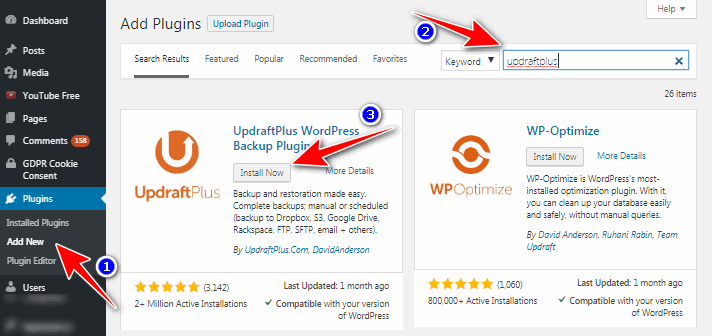
Go to the plugins area and add a new plugin named “Updraft.” Plus, install, and activate the plugin
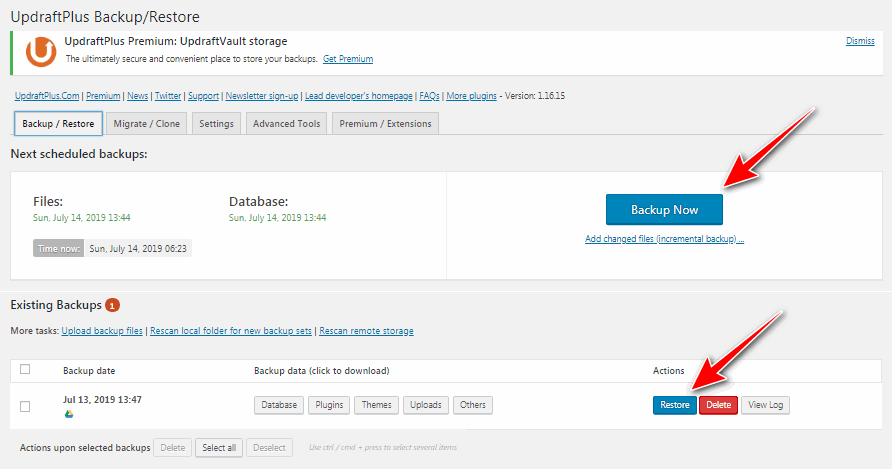
2. Now open the UpdraftPlus dashboard, and you will see three buttons, namely backup now, restore, and clone/migrate (premium add-ons).
3. On the settings page, if you choose to back up files to your Dropbox, you will be directed to the Dropbox website to authenticate your drive access. Just click the “Complete Setup” button.
For example, if you have to send to Dropbox, they will redirect you to the Dropbox website, where you have to log in, and it will be automatically connected to your UpdraftPlus account.
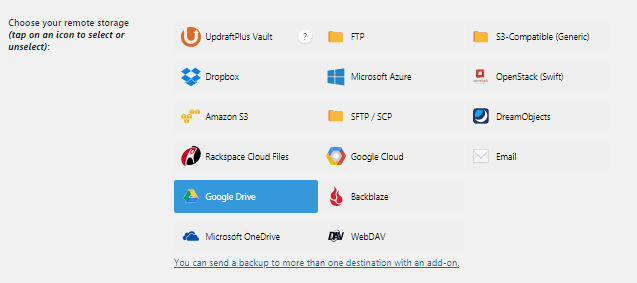
4. Once your Dropbox or other drive is connected to Updraft Plus, you can choose the interval to backup your site in the settings option in the dashboard.
This plugin allows you to create automated scheduled backups on a daily, weekly, or monthly basis. That means you can set up automated backups, or you can do manual backup creation with a single click.
Now your team is ready to backup at your set interval. Backing up is the process of saving a duplicate version of your work. It includes your theme and site files (like plugins) and database (posts, users, comments, etc.)
b. How to use Updraft Plus to restore WordPress data from a drive to a host?
To restore your backup from the drive, you just click on the restore option. Now, the drive is connected to the Updraft Plus. To restore from the drive, click on the restore option in the dashboard, and you’ll see the list of recent backups.

To backup a WordPress site, click the “restore” button and wait until all the data is restored to your website.
I am using this method to make a backup of the WordPress site.
A few of the hosts backup your site files only, but not media files. So it’s better to use the free version of this plugin. A great choice.
2. Using an All-in-one WP migration Plugin
The All-in-One WP Migration is another WordPress plugin that is used by many bloggers to migrate data from one site to another.
But this plugin also helps in backing up your data.
a. How does an all-in-one WP migration backup work?
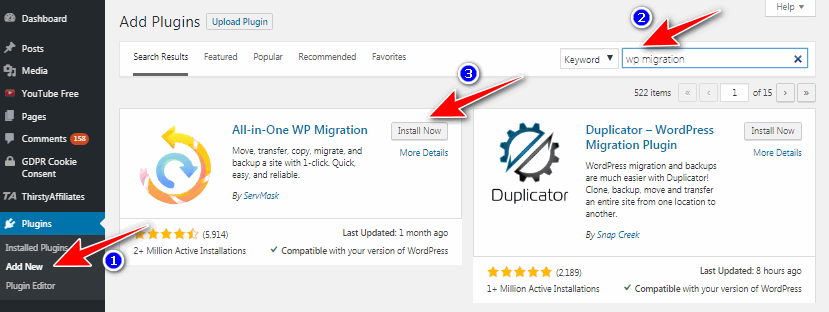
The database searches for all-in-one WP migration in the plugins section, then installs and turns on the plugin.

From the sidebar, choose the All-in-one WP Migration – Export option.
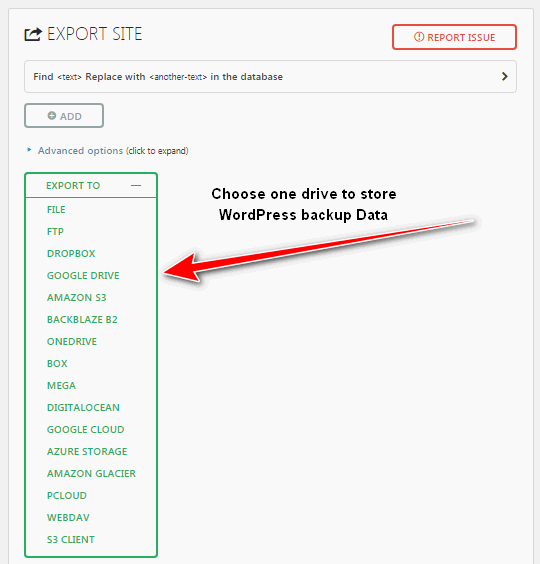
Now you have to choose the drive to backup the entire site, like Dropbox, Google Drive, etc.
In the advanced options, you can select some options like comments or post images from your media library that you do not want to export to your drive.
Now choose the drive you want to export your backups to and click on the Export button
And your backup is ready to be exported to another site.
b. Restoring your backups from all in one WP migration
You will see the list of localhost backups created on your drive in the dashboard of all in one WP Migration.

Choose “Import” from the left-side columns and click on the button Restore the next “Import from” to the plugin.
Finally, choose the location of the file from either a local drive or an online drive (Dropbox, GDrive, and OneDrive)
We will click on the Restore button to be taken care of by the plugin.
3. By Using BackWPup Plugin
The BackWPup plugin allows you to backup and restore WordPress websites. It also has separate schedules for database and full backups.
In this plugin, you can backup only the database, which means you can back up the entire WordPress functions.
How to backup a WordPress site using the Backup WordPress plugin?
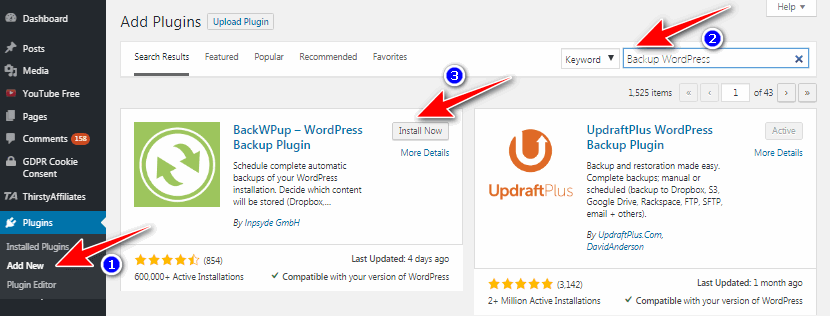
As for the two plugins, install the plugin from the plugin store.
Install the plugin and set it up so that the size is backed up regularly. Then, choose the drive where you want your backups to go.
This plugin has a set of several backups to store on the server, and you can also schedule or manually save your backups using this plugin.
BackupBuddy is a paid plugin. Updraft Plus and BackupBuddy are free plugins that can be used to store your backups on cloud storage services.
The plugin comes with very good features like backup encryption, encrypted backup transport, and more cloud storage choices.
This backup system, however, is insufficient for a web hosting account. As a result, you’ll have to rely on third-party backup services regularly. All three of the methods listed above are beneficial for better real-time backups.
Frequently Asked Questions (FAQs)
-
What is a WordPress backup?
WordPress backup is created by copying the database, files, and plugins from the hosting server to a cloud storage option. It is easy to create backups from the cPanel or Filezilla client.
-
Does BackupBuddy support WordPress multisite?
BakupBuddy is another WordPress backup plugin. It is a paid plugin. It does not support multisite. It is just experimental. But it is not recommended for live sites.
-
How to Backup Your Website Without a Plugin?
Creating a WordPress site backup is very easy with plugins. But sometimes, it is not the best choice for every kind of site owner. You can do the manual backup from the hosting cPanel by using the Backup Wizard option. Another method is using an FTP client like Filezilla, where you can create and download the backup to your computer. These are very helpful options to backup your site without a plugin.
Backing up your WordPress site is one of the most important steps in website maintenance, but it is just one part of a complete optimization strategy. Once your backups are in place, the next step is to speed up WordPress site performance with the right caching plugins.
Final words on how to backup WordPress site for free:
You can back up and restore your WordPress site to a new server with the help of the three great plugins listed above.
All of the above-mentioned plugins give you the option to save your data by hand, or you can set up regular backups.
If you are making major changes to your website, like installing a plugin, you should always create a backup of your site.
This manual backup can also be done by going to the backup page on the plugin dashboard and clicking on the BACKUP button. I will press the now button, and your backup will be done at the very next moment.
This article explains how to backup your WordPress sites for free before they lose data accidentally. Of course, web hosting services are taking this action from their backend as a regular backup feature. If you have ever faced restoring your site, we are ready to hear your story. Share your story with our users in the comments section below.