WordPress is a free, popular software used to build and manage websites, called a content management system (CMS). It is flexible and can handle anything from small blogs to large business sites.
This comprehensive step-by-step WordPress setup guide walks beginners through every installation method available on Hostinger. You will use four methods: the onboarding wizard, hPanel Auto Installer, Softaculous, and a full manual setup.
By the end, you will have a fully working WordPress site. It will include a free SSL certificate. Your site will be ready to customize with your favorite theme and plugins. This tutorial is tailored for beginners and bloggers. It also suits small business owners who want a fast and reliable WordPress installation on Hostinger without any coding.
Use these four methods to install WordPress on Hostinger, depending on your hosting plan and control panel.
What Do You Need Before Installing WordPress
Before installing WordPress on Hostinger, make sure that a few basic requirements are ready. As a complete beginner WordPress tutorial, this guide ensures you have all the prerequisites and knowledge needed before starting.
This preparation helps the setup run smoothly. It keeps your site performing well. It also saves time during the installation wizard by reducing the risk of errors.
1. Web hosting
- WordPress is free, but you still need web hosting to store your site’s files and data.
- Choose a hosting provider that supports at least PHP 7.4, MySQL 5.7 or MariaDB 10.4, and HTTPS to ensure security and solid performance.
- Some providers, such as Hostinger, offer extras like one-click installation and free SSL. They also provide enhanced security features and fast NVMe storage on selected plans.
2. Domain name
- A domain name is your website’s address, like example.com, which makes it easy for people to find your site.
- You can purchase a domain separately. Alternatively, you can choose a hosting plan that includes a free domain. These plans also offer WHOIS privacy to protect your personal information.
- Choose a domain name that clearly reflects your brand or niche to build a strong and memorable online identity.
WordPress files and tools
- Download the WordPress package from WordPress.org if you plan to install it manually.
- Use an FTP client or your hosting provider’s file manager to upload the WordPress files to your server.
- Use a simple code editor if you need to modify core files such as wp-config.php during setup.
How to Install WordPress on Hostinger
With Hostinger, you can install WordPress in several ways, depending on your hosting plan and control panel. Hostinger customers can use the guided onboarding process.
Alternatively, they can use the hPanel auto-installer. Other environments support installation via Softaculous. A full manual setup is also supported.
WordPress install options
- Hostinger users can install WordPress via the onboarding wizard or hPanel’s Auto Installer.
- Users on other hosts can install WordPress using Softaculous or by uploading the files and configuring everything manually.
| Method | Best for | Difficulty | Time needed |
|---|---|---|---|
| WordPress onboarding | New Hostinger users, beginners | Easy | 5–10 mins |
| Auto Installer | Subdomains/older versions | Easy | 5–10 mins |
| Softaculous | cPanel/other hosts | Medium | 10–15 mins |
| Manual install | Advanced users/custom setups | Hard | 15–25 mins |
Method 1: How to Install WordPress Using hPanel’s WordPress Onboarding
The WordPress onboarding process on Hostinger is the fastest method, completing installation in just 5-10 minutes. This method is available on Hostinger Business and cloud plans. It is ideal for beginners who want to get online quickly. They can benefit from AI-assisted content.
Step 1: Start with create
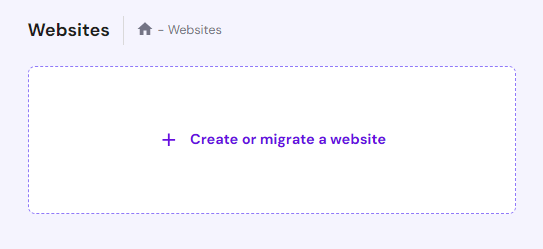
Log in to hPanel, go to Websites, and click Create or migrate a website.
Step 2: Choose website type
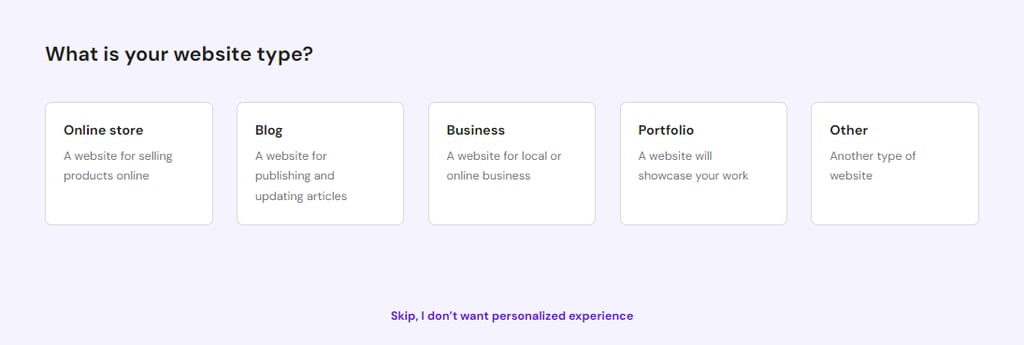
Choose the type of website you want to build.
Step 3: Select Platform
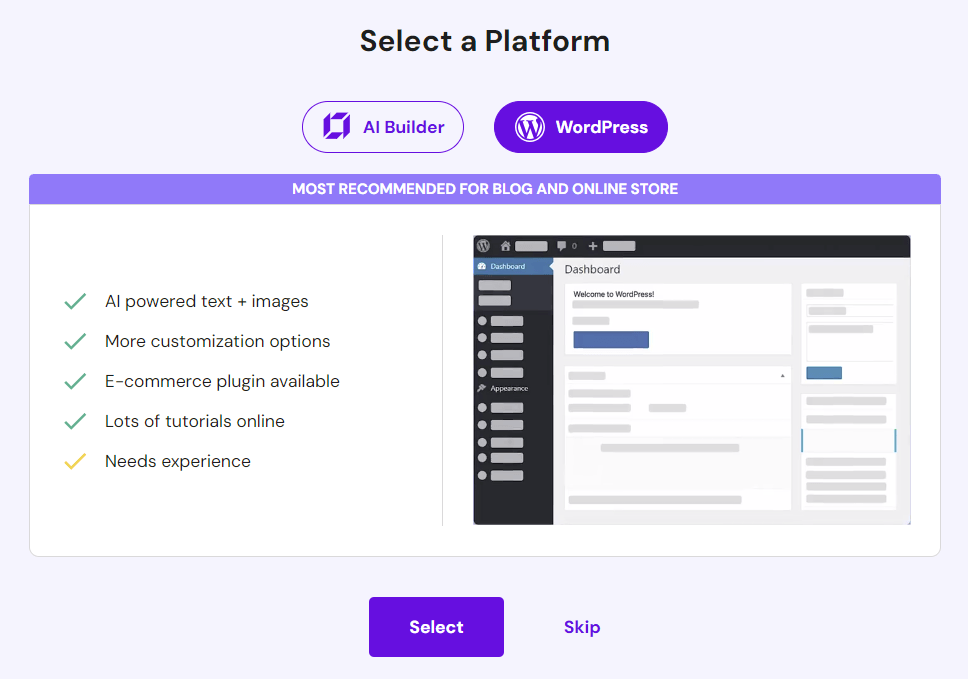
Select Create a new website and choose WordPress as the platform.
Step 4: Create Login details
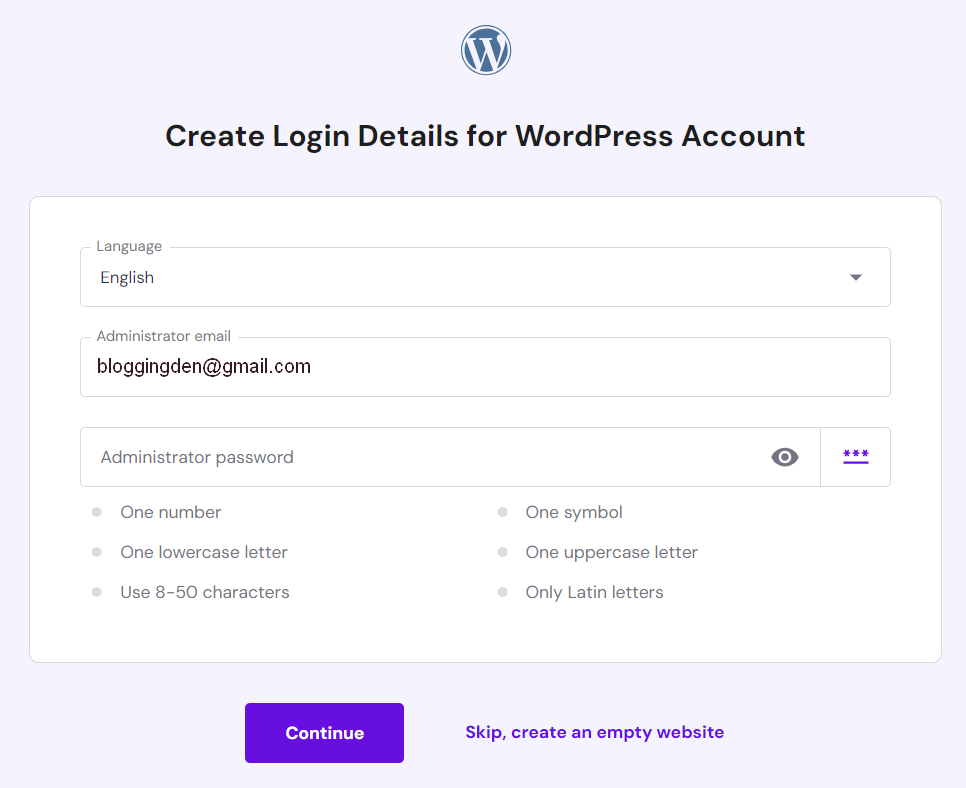
Select your language and create login details for your new WordPress admin account. Use a strong password, then click Continue.
Step 5: Add Plugins to your website
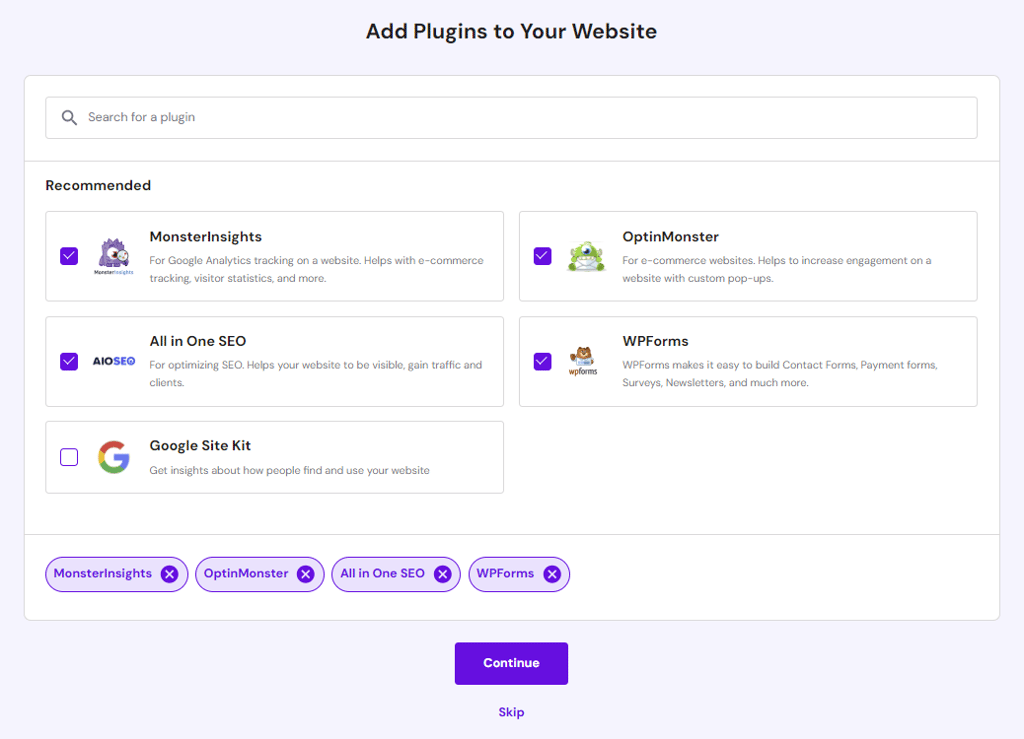
Select the WordPress plugins you want to install automatically. You can also deselect the ones you don’t need. Then click Continue.
Step 6: Start creating content with AI
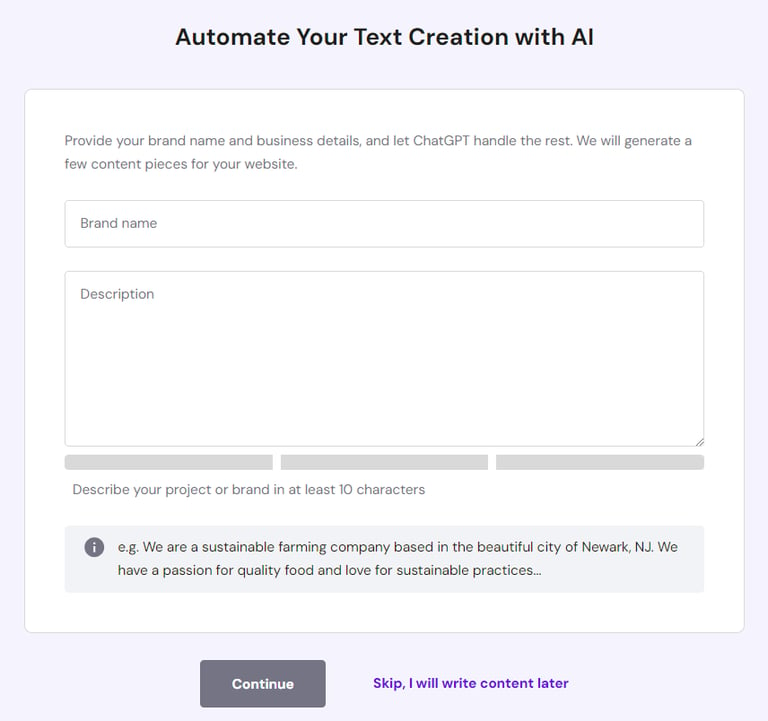
Choose a WordPress theme. Then fill in the AI content form with your brand name and a brief description of your business. This information helps the AI generate starter content. Click Continue.
Step 7: Register a new domain now
Register a new domain or select an existing one from the dropdown to start the installation. The process may take a few minutes.
Step 8: Return to hPanel
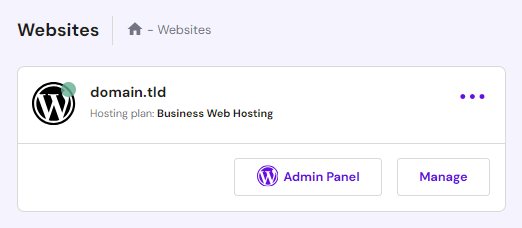
After installation, return to Websites in hPanel and click Admin Panel to open your WordPress dashboard.
If you want a complete overview of Hostinger’s pricing, performance, support, and WordPress features before following this tutorial, you can read my Hostinger review first.
Method 2: How to Install WordPress Using hPanel’s Auto Installer
Using hPanel’s Auto Installer is a simple way to set up WordPress. It is especially useful if you want an older WordPress version. You can also install it on a subdomain without touching your main site.
Follow these steps:
Step 1: In hPanel, go to Website → Auto Installer and choose WordPress.
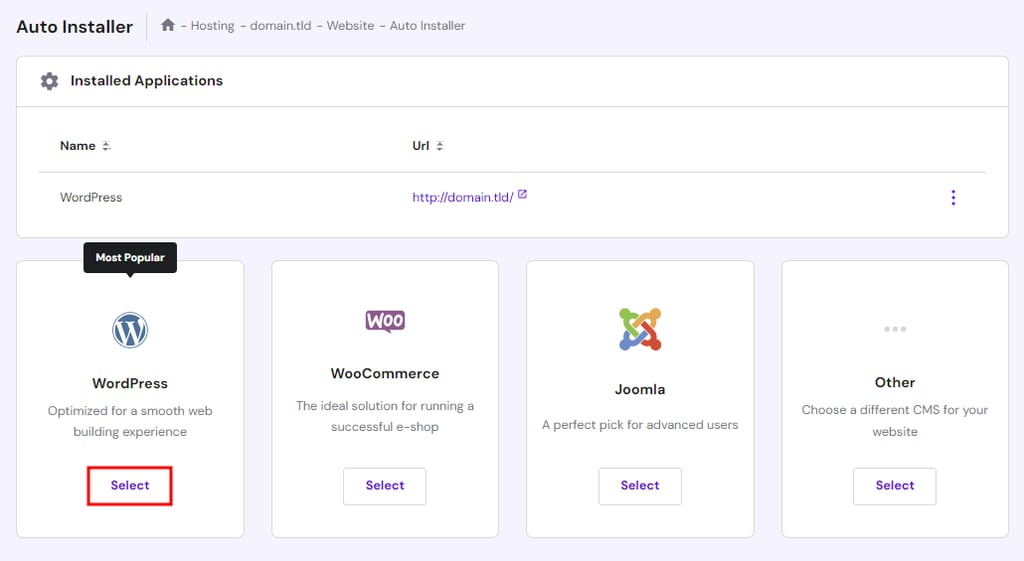
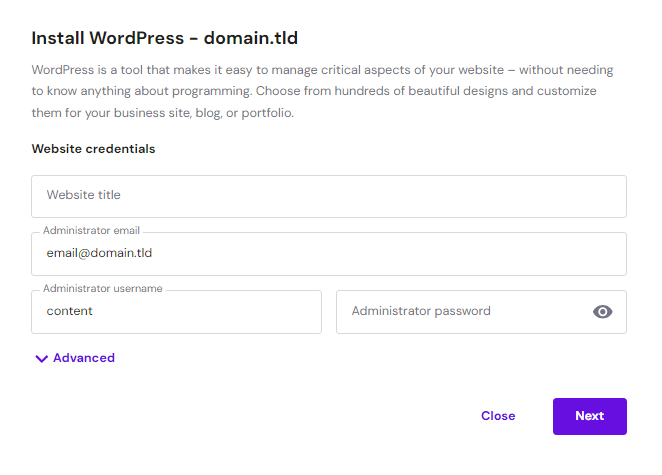
Step 2: Fill in your site title, admin email, username, and password, then click Next.
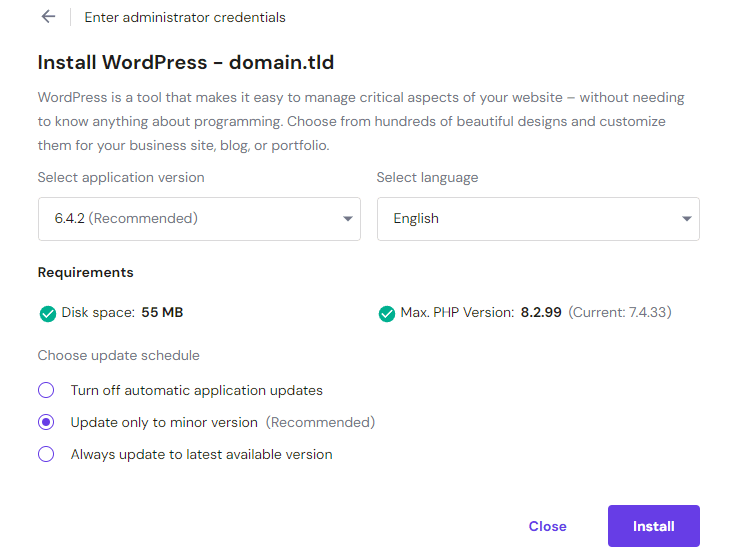
Step 3: Choose the WordPress version and language. Decide how updates should run. For safety, select Update only to minor version. Click Install.
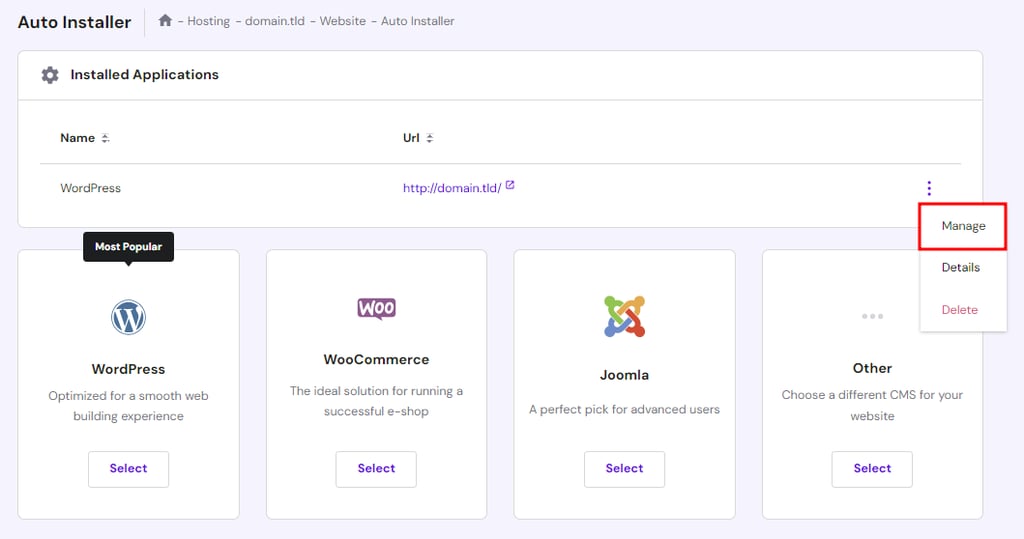
Step 4: After the installation is complete, your WordPress setup will appear under Installed Applications. Click the three dots next to its URL, then select Manage to open the hosting area.
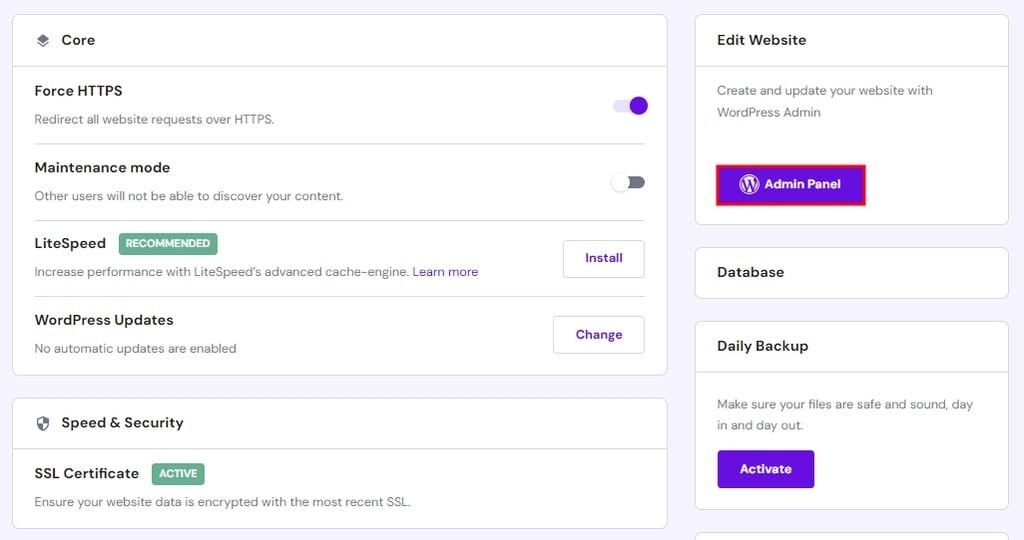
Step 5: Click Admin Panel to open the WordPress dashboard and start managing your site.
Method 3: How to Install WordPress Using Softaculous
If you are not using Hostinger, you can still install WordPress easily with Softaculous. This auto-installer is available in popular control panels like cPanel, Plesk, DirectAdmin, and InterWorx.
Follow these steps in cPanel:
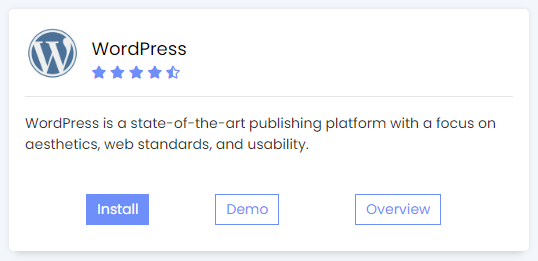
Step 1: Open your cPanel and go to Softaculous Apps Installer, then click the Install WordPress button.
Step 2: Choose the protocol (http or https) and the WordPress version. If you have a free SSL certificate, select https:// so your site uses HTTPS.
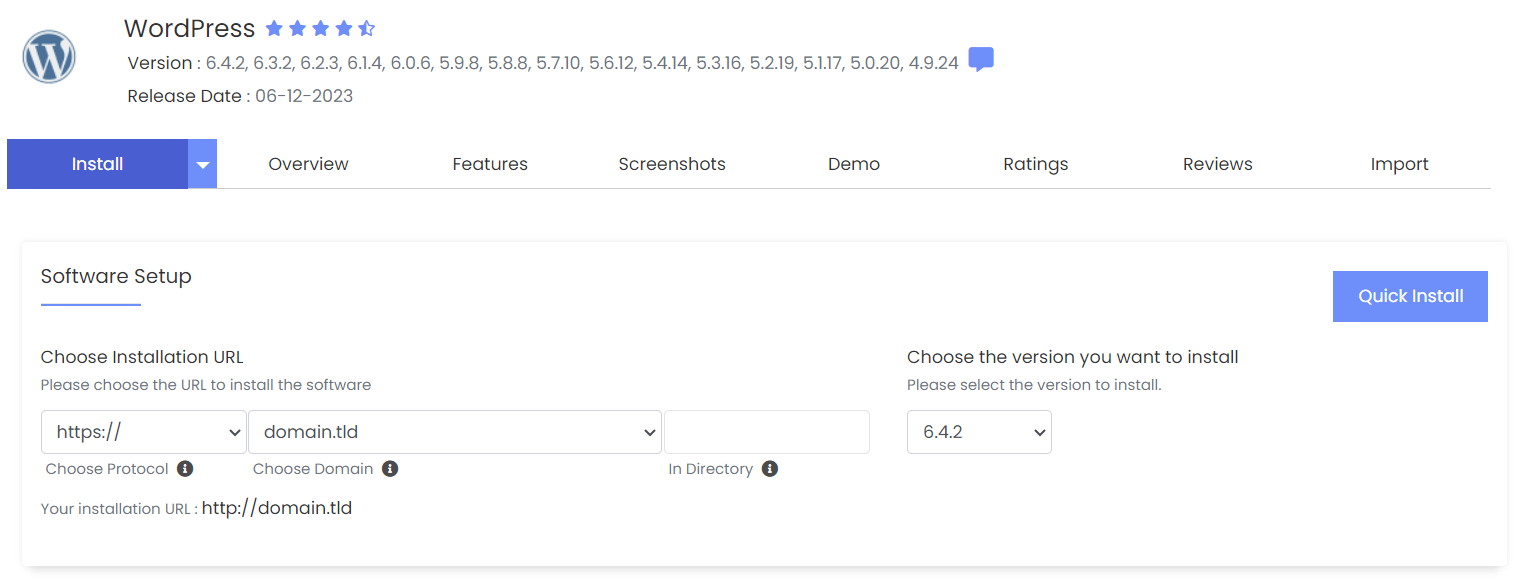
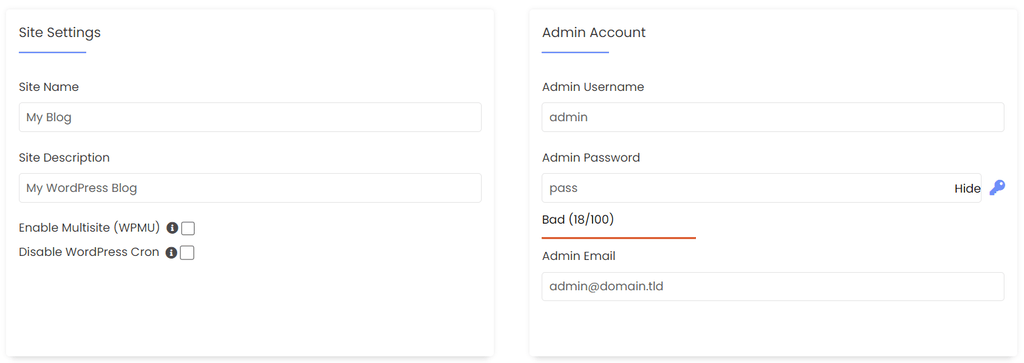
Step 3: Enter your site name, description, admin username, password, and email address. Enable Multisite only if you want a single WordPress installation to manage multiple websites.
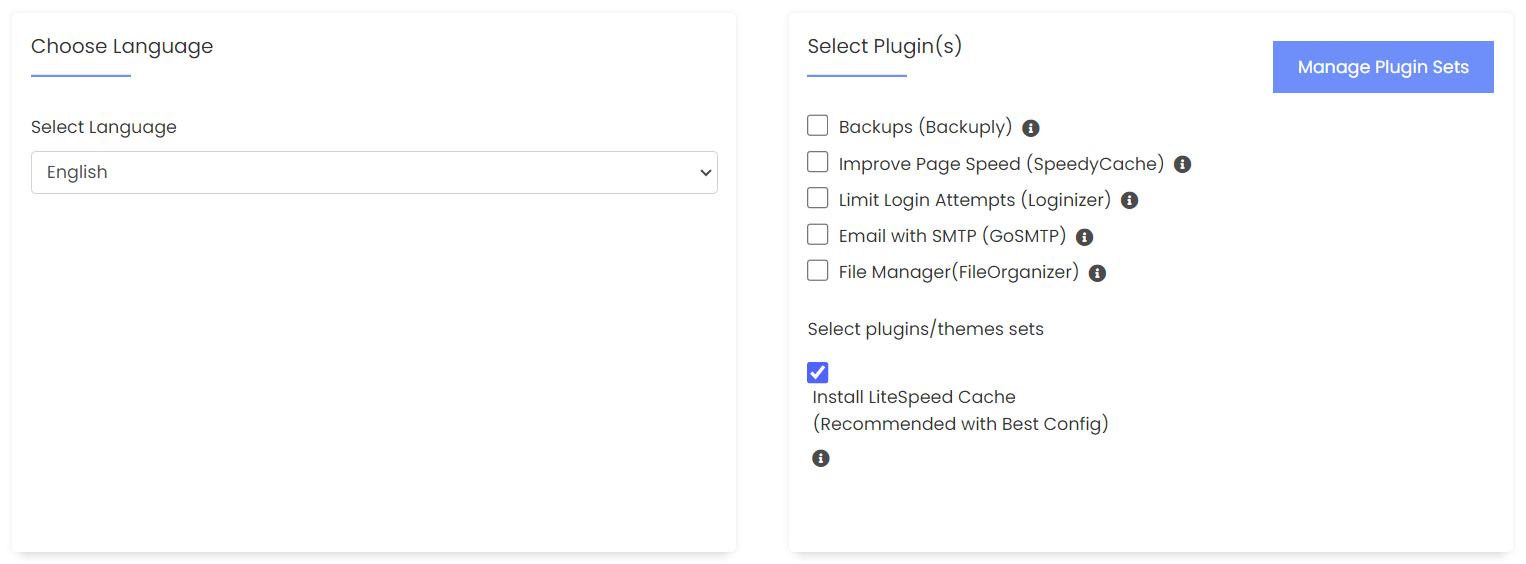
Step 4: Pick your language and select any plugins you need. In most cases, enabling the suggested LiteSpeed Cache plugin is enough for basic caching.
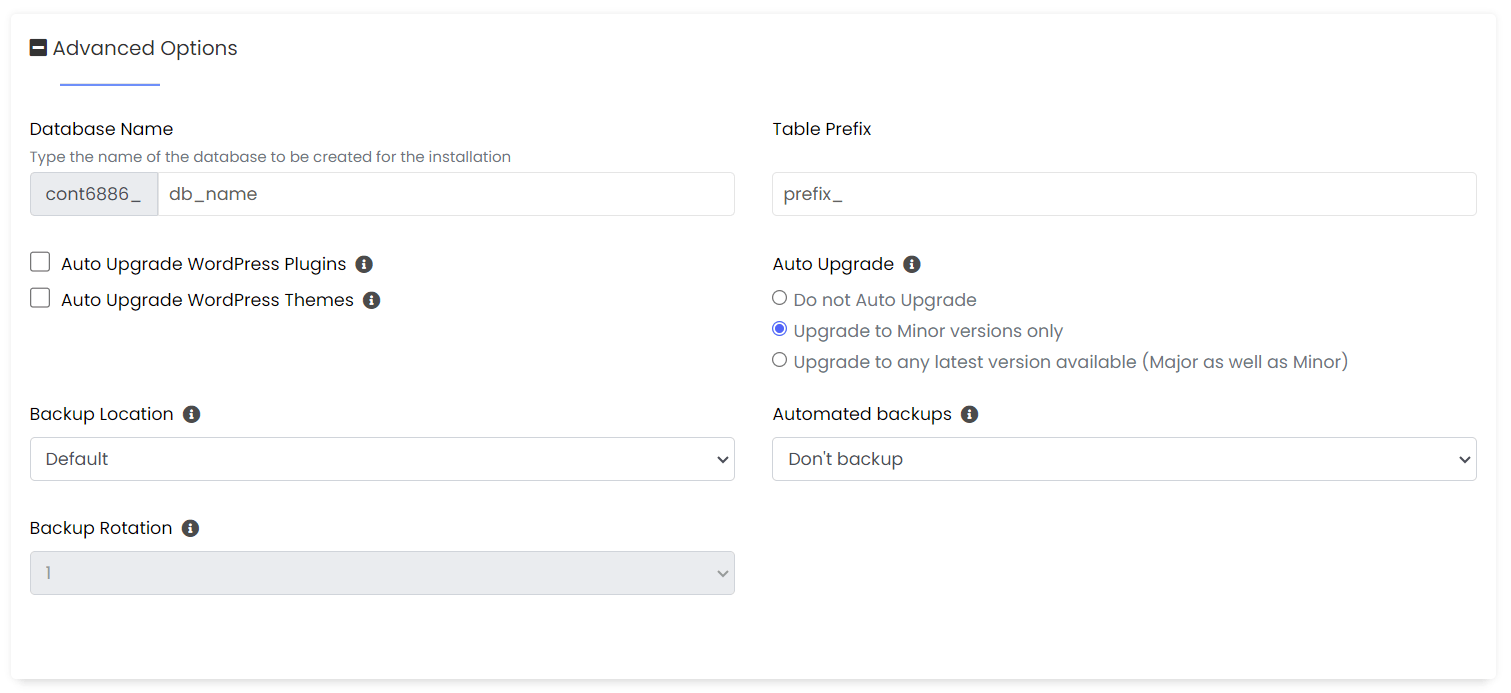
Step 5: Leave the Advanced Options (database and backup settings) at their default values unless you specifically need custom settings.
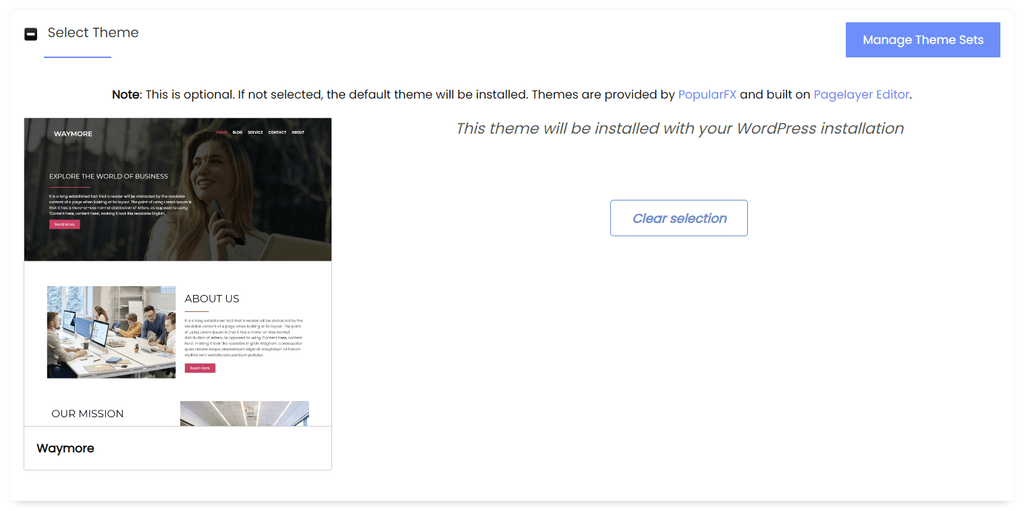
Step 6: Choose a theme, click Select Theme, and use Clear Selection if you change your mind.
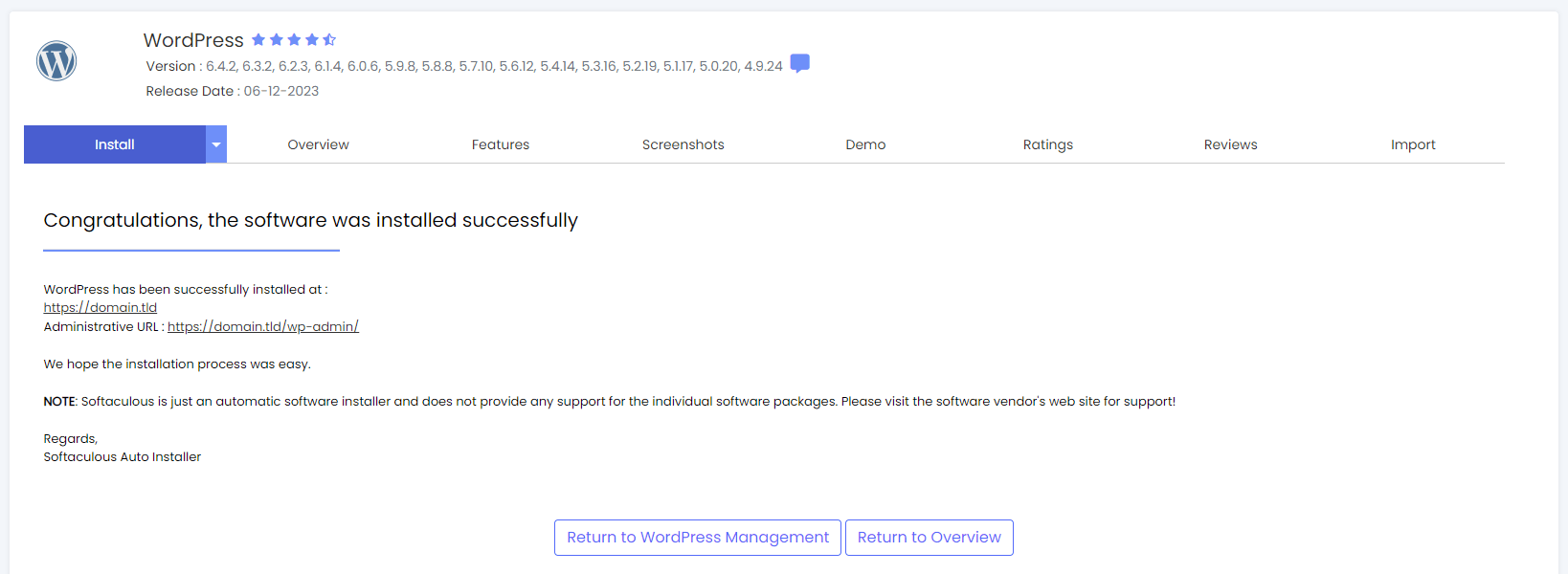
Step 7: Click Install at the bottom. When the setup finishes, use the admin URL shown on the screen (for example, https://domain.tld/wp-admin) to log in to your WordPress dashboard.
Method 4: How to Install WordPress Manually
Installing WordPress manually is useful when your hosting provider does not offer an auto-installer or when other installation methods fail. This approach gives more control over the setup while still being manageable for beginners who follow each step carefully.
1. Upload WordPress files
You first need to place the WordPress core files on your hosting account so your server can run the installer.
Using hPanel File Manager:
- Download the latest WordPress package from the official WordPress.org website.
- In hPanel, go to Files → File Manager.
- Upload the downloaded ZIP file to the root directory (public_html), then right-click it and choose Extract.

Using an FTP client:
Step 1: Download the WordPress package and extract it on your computer.
Step 2: In hPanel, go to Files → FTP Accounts. Create a new FTP account if you do not already have one.
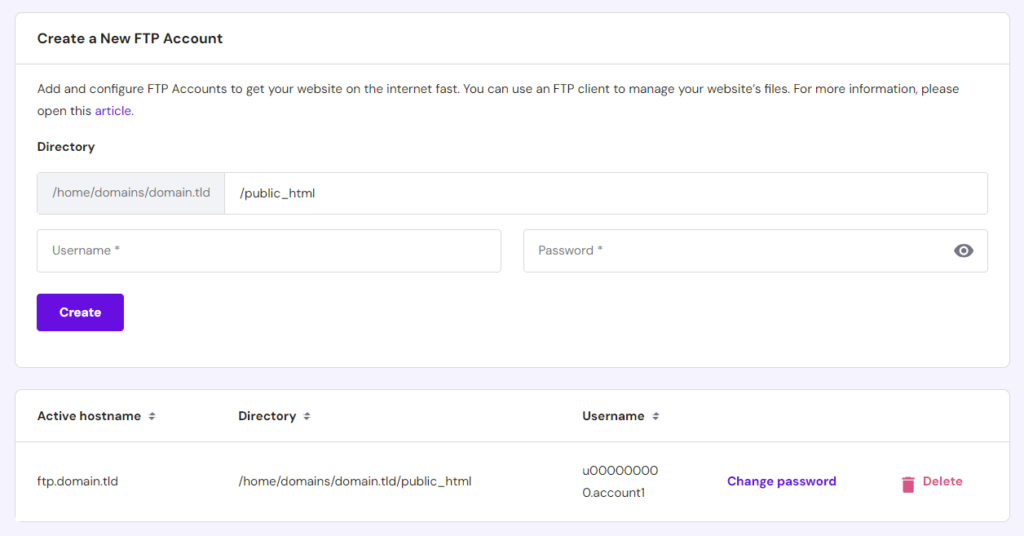
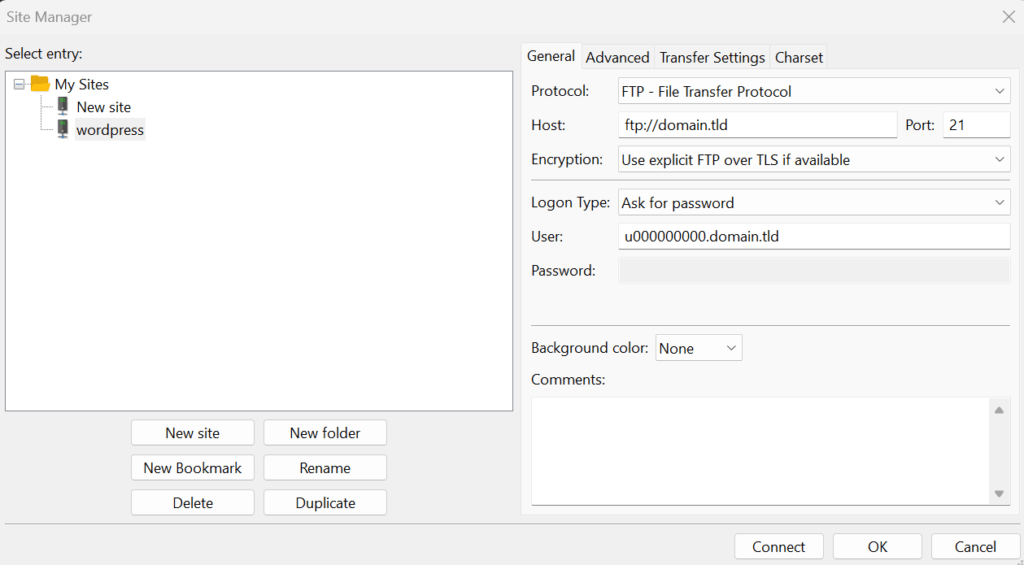
Step 3: Open an FTP client like FileZilla. Connect using your FTP login details (Files → FTP) from hPanel. Upload the extracted WordPress folder into the public_html directory.
2. Create a MySQL database and user
A database is the main storage center for a website’s information, keeping everything organized in one place. It stores all essential site data, including user details, configuration settings, and content such as posts and pages. A database user is an account with the necessary permissions to access and manage this stored information. WordPress uses MySQL, a database management system. MySQL handles the creation, retrieval, update, and deletion of data within the database.
WordPress stores all content and settings in a MySQL database. It needs a database user with permission to access the database.
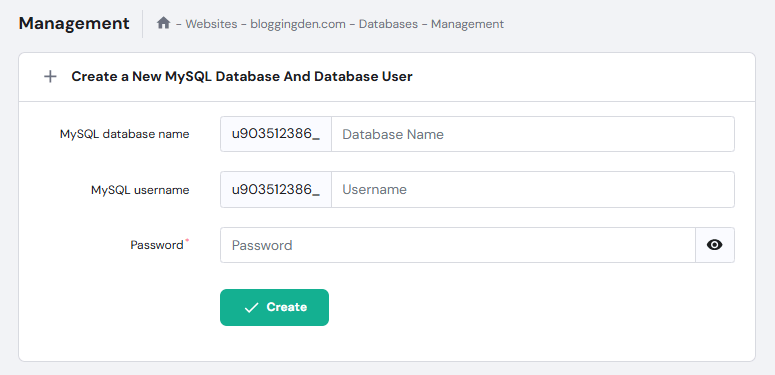
- In hPanel, navigate to Databases → Management.
- Create a new MySQL database by entering a database name, username, and secure password, then click Create.
- Note these details (database name, username, password), as they will be used in the configuration file.
3. Configure wp-config.php
The wp-config.php file tells WordPress how to connect to your database and contains key configuration settings.
- Access your site’s root directory via File Manager or FTP.
- Open the WordPress folder and find wp-config-sample.php, then rename it to wp-config.php.
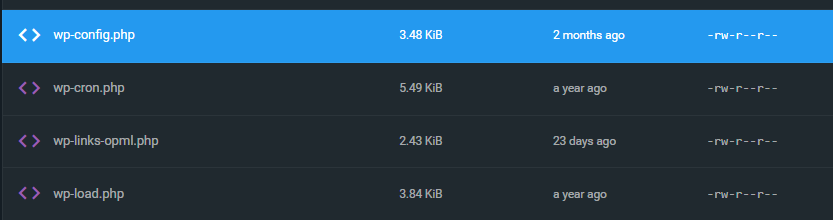
- Right-click on the wp-config.php file and choose EDIT, and locate the section with the database definitions.
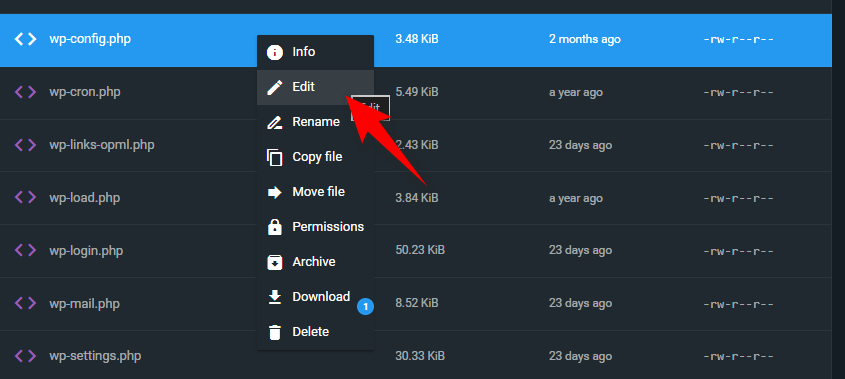
- Replace database_name_here, username_here, and password_here with your actual MySQL database name, username, and password, keeping the quotes and exact spelling.
// ** MySQL settings - You can get this info from your web host ** //
/** The name of the database for WordPress */
define( 'DB_NAME', 'database_name_here' );
/** MySQL database username */
define( 'DB_USER', 'username_here' );
/** MySQL database password */
define( 'DB_PASSWORD', 'password_here' );
/** MySQL hostname */
define( 'DB_HOST', 'localhost' );
- Leave DB_HOST as localhost unless your host specifies a different value, then Save the file.
4. Run the WordPress installation script
Once the files and database connection are ready, you can complete the installation in your browser.
- Open your browser and go to domain.tld/wp-admin/install.php, or domain.tld/subdirectory_name/wp-admin/install.php if WordPress is in a subfolder.
- Choose your site language and click Continue.

- Enter your site title, admin username, password, and email address. Optionally, tick Search engine visibility if you want to discourage search engines from indexing the site for now.
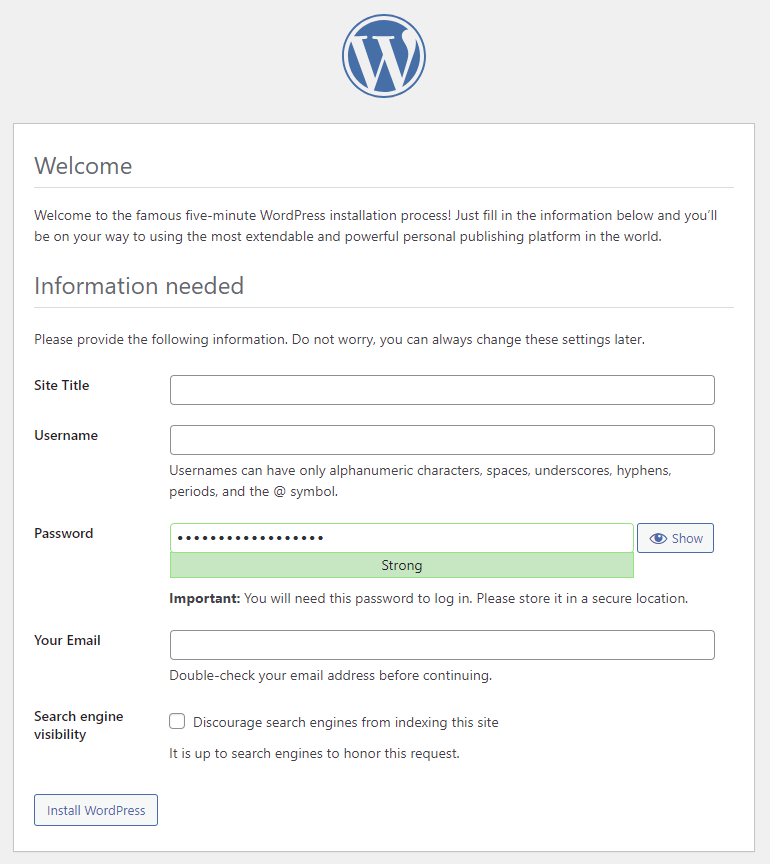
- Click Install WordPress to begin the setup.
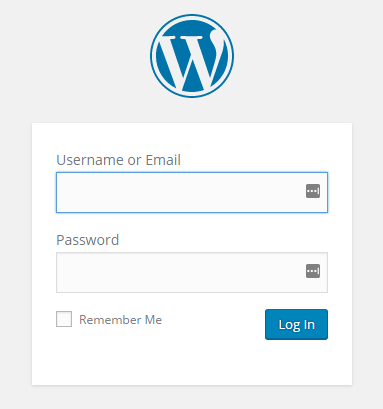
- After the installation finishes, you will be redirected to the login screen. Enter your admin credentials. Then click Log In to access the WordPress dashboard.
5. If asked for database details during install
In some cases, WordPress may ask for database information after you select a language.
- Click Let’s go! and fill in your MySQL database name, username, and password.
- Leave Database Host and Table Prefix unchanged unless you need multiple WordPress installations in one database.
- Click Submit, let WordPress verify the connection, then choose Run the installation to complete the setup.
How to Install WordPress on a Subdomain in Hostinger
Installing WordPress on a subdomain in Hostinger is perfect when you want a separate WordPress website. You don’t need to buy a new domain. For example, you can use blog.example.com or staging.example.com. This is commonly used for a staging site. It is also ideal for a dedicated blog section. Language‑specific WordPress installs are another option. You can also create niche landing pages under the same main domain.
Step 1: Create a subdomain in hPanel
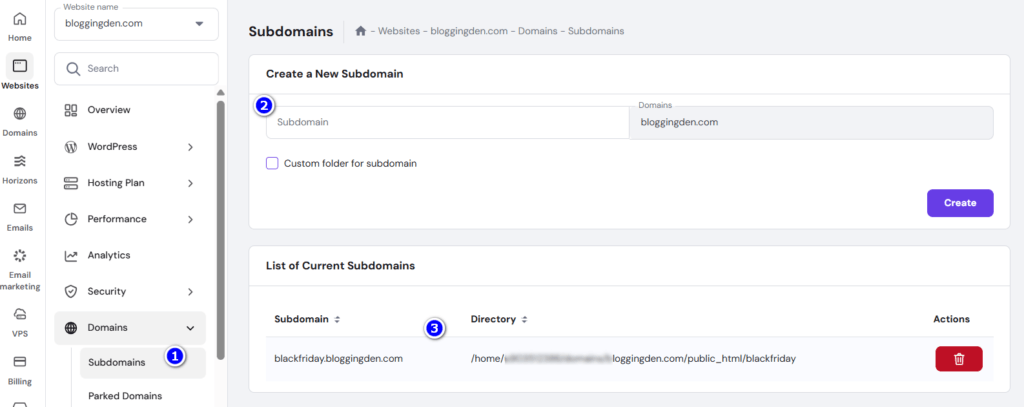
- Log in to your Hostinger hPanel dashboard and go to Domains → Subdomains.
- Enter the subdomain name. Examples are blog, shop, or staging. Then select the main domain where you want to create the new subdomain.
- Leave the default document root. Alternatively, choose a custom folder under public_html if you want a separate directory for your WordPress subdomain site.
- Click Create. Wait a few minutes for DNS propagation. In some cases, the new subdomain can take up to 24 hours to become fully active worldwide.
Step 2: Install WordPress using Auto Installer on the subdomain
- From hPanel, go to Websites → Auto Installer and select WordPress as the CMS you want to install.
- Fill in your WordPress site title, admin email, username, and a strong password, just like a normal primary domain installation.
- Click the Advanced or Custom settings section and choose the newly created subdomain from the domain dropdown (for example, blog.example.com instead of example.com).
- Confirm the latest WordPress version, preferred language, and database options. Then click Install. Wait until the subdomain WordPress installation finishes.
Step 3: Access your WordPress subdomain site
- Once the one‑click installer completes, you can open your site at https://subdomain.yourdomain.com and log into the WordPress admin dashboard at https://subdomain.yourdomain.com/wp-admin.
- From here, you can install a separate WordPress theme, plugins, and settings for your subdomain site. This will not affect the main WordPress installation on the root domain.
Common use cases for a WordPress subdomain
- Staging environment: Create staging.example.com to test theme changes, plugin updates, and new designs before pushing them to the live site.
- Blog subdomain: Run blog.example.com as a dedicated WordPress blog while keeping your main site as a static or e‑commerce front end.
- Language or region‑specific sites: Use subdomains like en.example.com, fr.example.com, or in.example.com as separate multilingual WordPress sites for different audiences.
Extra tips for WP-Admin access
- If you forget your password, use the “Lost your password?” link on the login page to reset it via email, or trigger a reset from the Hostinger control panel.
- If
/wp-adminReturns a 404 or redirect error; check that WordPress is installed in the correct directory. Then, review Hostinger’s WP-Admin troubleshooting guide.
How to log in to your WordPress dashboard
After you install WordPress on Hostinger, the next step is learning how to access your WordPress dashboard. This allows you to manage posts, pages, themes, and plugins. You can log in either with the standard wp-admin login URL or directly from your Hostinger hPanel using one‑click access.
Method 1: Using the wp‑admin login URL
- Open your browser and type your website address, followed by
/wp-admin, for examplehttps://yourdomain.com/wp-admin. - If WordPress is installed on a subdomain or subdirectory, use URLs like
https://blog.yourdomain.com/wp-adminorhttps://yourdomain.com/blog/wp-admininstead. - On the WordPress login page, enter the admin username or email and password you created during installation. Then click Log In to open the WordPress admin area.
- Bookmark this WP-admin login URL in your browser so you can quickly reach the WordPress dashboard next time.
Method 2: One‑click login from Hostinger hPanel
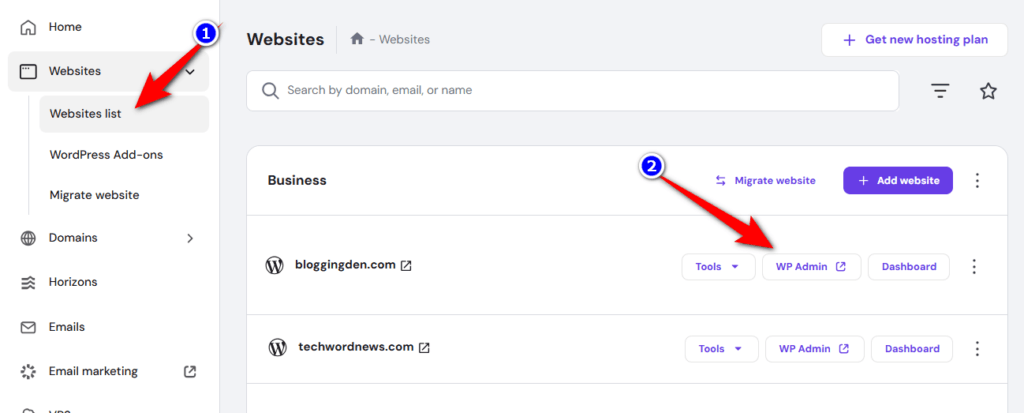
- Log in to your Hostinger account and open hPanel, then go to the Websites section.
- Find the site you want to manage. Click the WP Admin button. This one-click login takes you straight into the WordPress dashboard without typing your password.
- This method is especially useful if you manage multiple WordPress installations on the same Hostinger account. You can jump between dashboards from a single WordPress Overview screen in hPanel.
WordPress Installation Guide: Essential Settings to Configure After Setup
Once WordPress is installed on your Hostinger hosting account, adjust a few essential WordPress settings. This will make your new WordPress website secure. It will also be user‑friendly and SEO‑ready.
These quick optimizations inside the WordPress dashboard help avoid technical issues later. They provide a solid foundation for blogging or business pages.
1. Set Site Title, Tagline, and Timezone
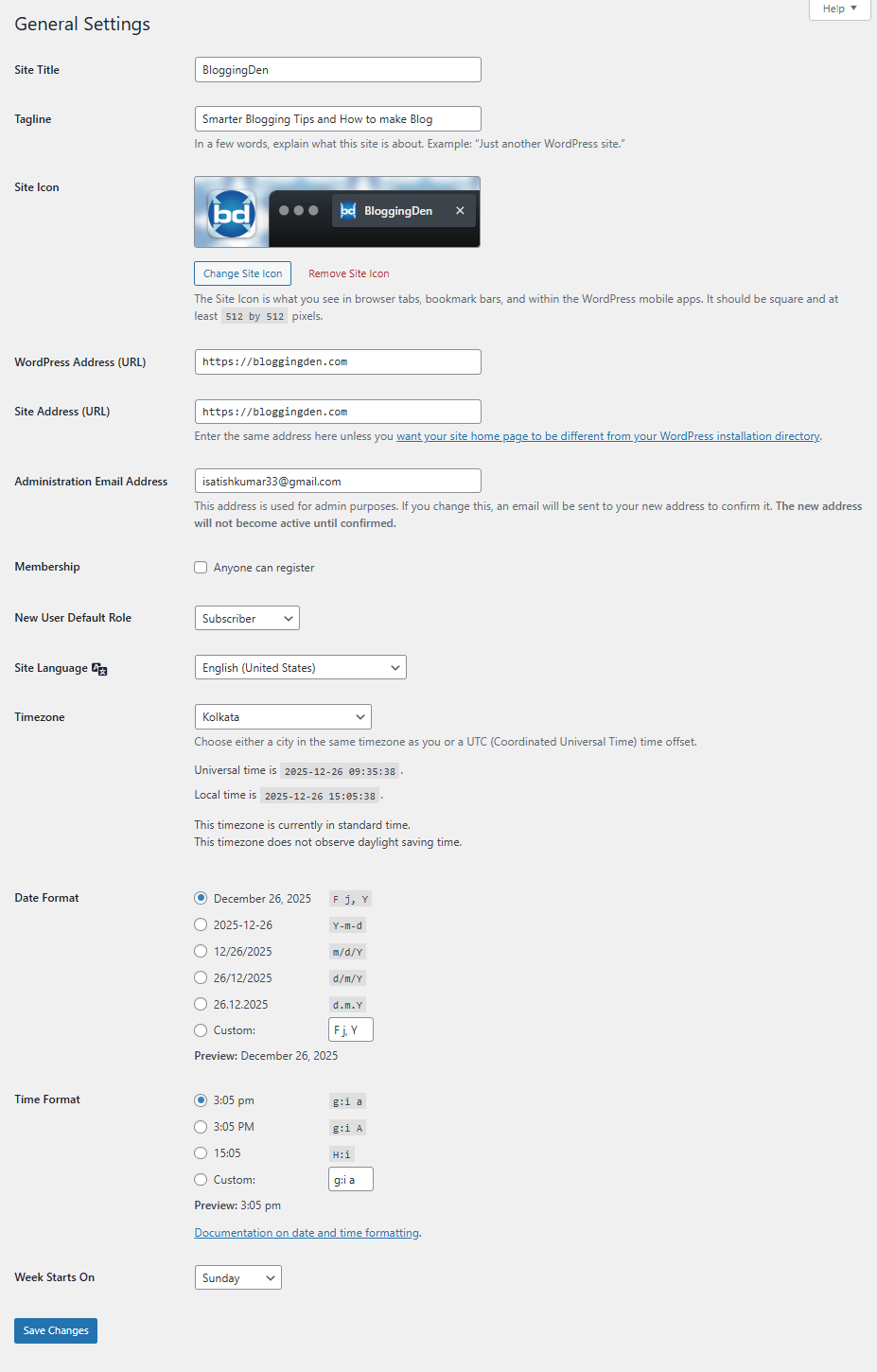
- In the WordPress admin dashboard, go to Settings → General to configure your Site Title and Tagline. They appear in the browser tab. They also often show up in search engine results.
- In the same screen, set the correct WordPress timezone. Adjust the date and time format. These changes ensure scheduled posts, comment timestamps, and events display properly for your audience.
2. Configure SEO‑friendly permalink structure
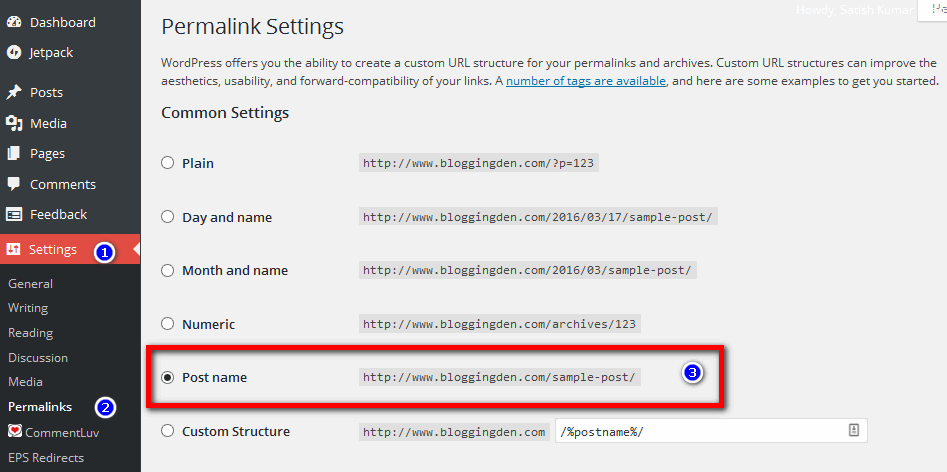
- Navigate to Settings → Permalinks and choose the Post name option to create clean, descriptive URLs, such as
https://yourdomain.com/sample-post/instead of plain IDs or dates. - This permalink structure is recommended for WordPress SEO. It improves readability. It can also help boost click‑through rates from Google and other search engines.
3. Install a lightweight WordPress theme
- Go to Appearance → Themes → Add New.

- Install a fast, lightweight WordPress theme such as GeneratePress, Astra, or Kadence. These themes are popular choices for WordPress blogs and business sites.
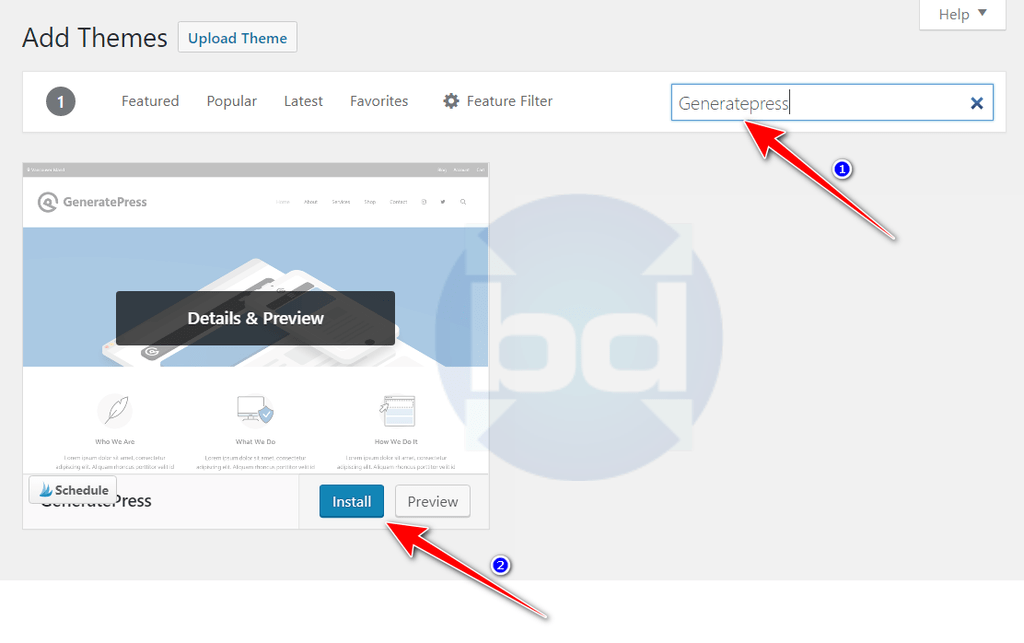
- A performance‑optimized theme will help your pages load faster. Hostinger’s WordPress hosting and caching features enhance this speed. This combination provides a better user experience.
4. Add essential WordPress plugins
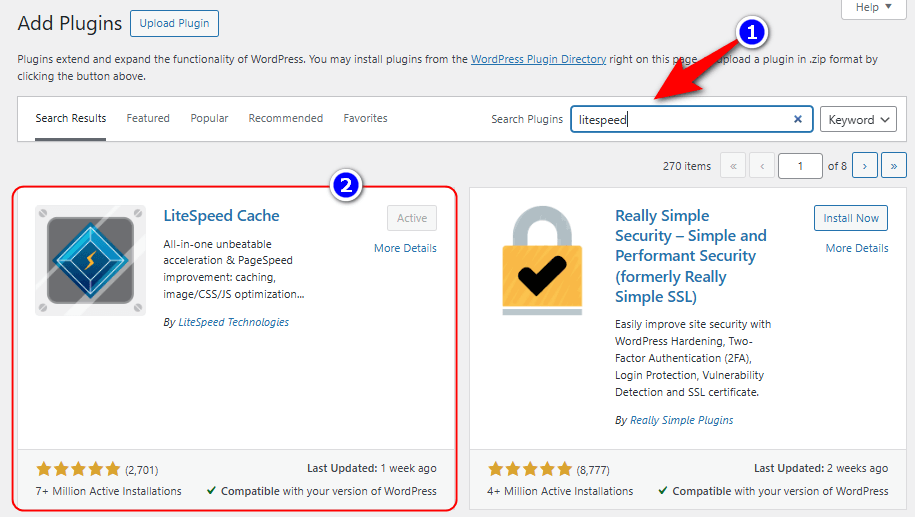
- Install core WordPress plugins for security, caching, SEO, and backups. Use a security plugin. Include a backup plugin. Add an SEO plugin like Rank Math or Yoast SEO.
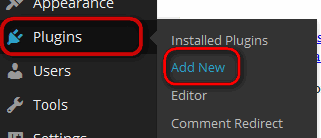
- If your Hostinger plan uses LiteSpeed servers, activate the LiteSpeed Cache (LSCache) plugin. This will enable page caching and image optimization. Additionally, it provides other WordPress performance optimization features.
5. Enable free SSL and force HTTPS
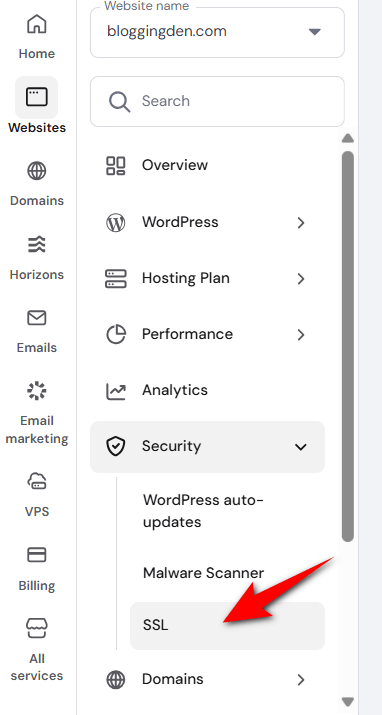
- In Hostinger hPanel, open the SSL section. Ensure the free Lifetime SSL certificate is installed. Check that it is active for your domain or subdomain.
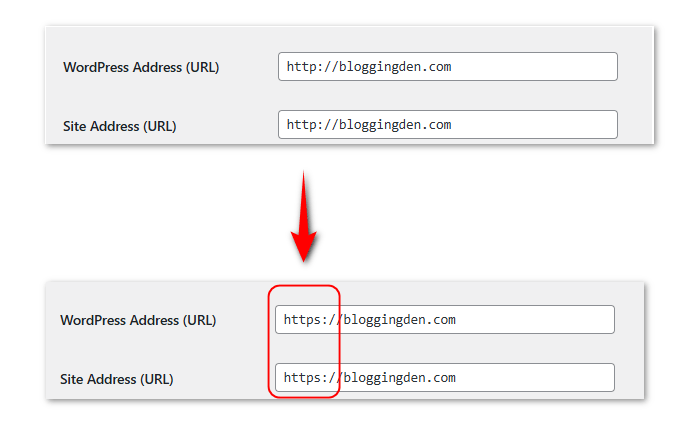
- Then, in WordPress Settings → General, update the WordPress Address (URL). Also, update the Site Address (URL)
HTTP://toHTTPS://. This change will load your WordPress site securely over HTTPS.
- If needed, use Hostinger’s Force HTTPS option or
.htaccessrules to redirect all traffic to HTTPS, improving website security, user trust, and SEO ranking signals.
Common WordPress Installation Problems
Many common WordPress setup issues on shared hosting can be solved quickly with the right troubleshooting steps.
Even when you follow all the steps, WordPress installation can sometimes fail, especially with manual setups. Below are frequent issues you face and practical ways to fix them.
1. Error connecting to the database
- The “Error Establishing a Database Connection” message appears when WordPress cannot read data from your MySQL database. This issue usually arises due to wrong credentials or a damaged database.
- Check the database name, username, password, and host in wp-config.php and make sure they match your MySQL details.
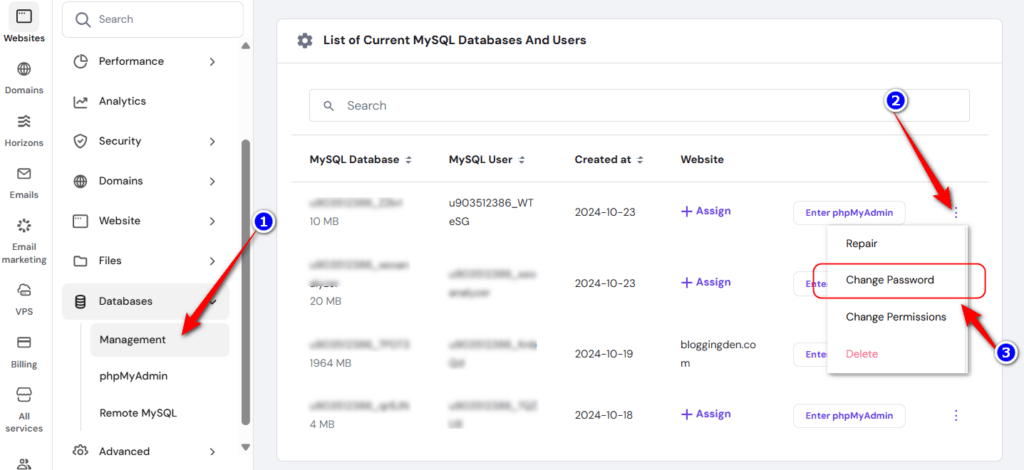
- If they are correct, reset the MySQL user password in Databases → Management in hPanel, then update it in wp-config.php.
- If the error still appears, click on the three dots and choose Change password.
2. WordPress white screen of death
- This is when your site shows a blank white page with no error message. This issue is often caused by low PHP memory. Corrupted core files, like functions.php, wp-config.php, or .htaccess, can also cause it.
- If you recently edited a core file, undo those changes or re-upload fresh WordPress core files to your hosting account.
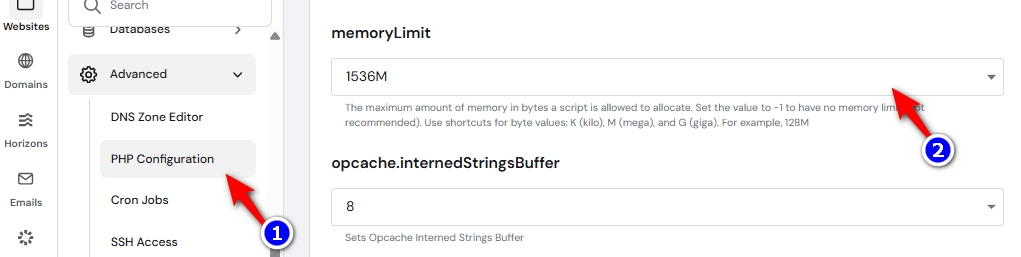
- Increase the WordPress memory limit via Advanced → PHP Configuration → PHP options in hPanel. Select a higher memory value from the dropdown.
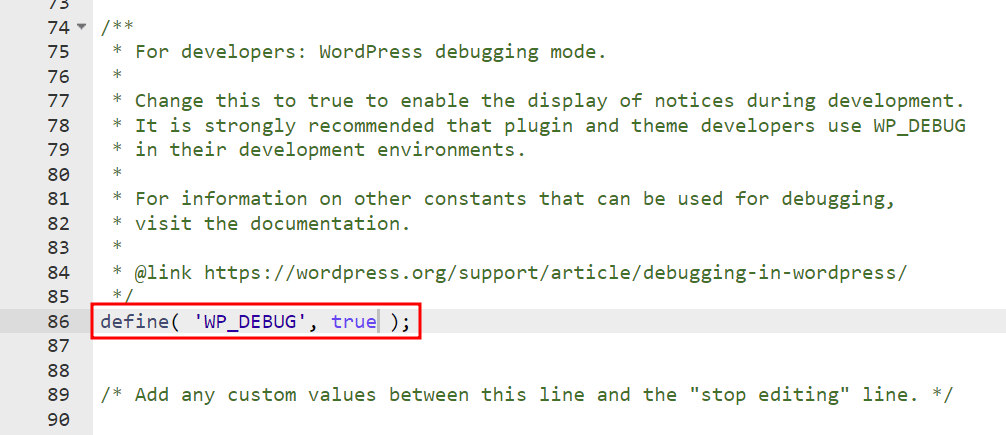
- Turn on debug mode by setting WP_DEBUG to true in wp-config.php so you can see specific errors and warnings.
3. Cannot modify header information error
- This error usually happens when there is extra space or hidden characters before <?php or after ?> in wp-config.php.
- Download wp-config.php, open it in a text editor, and ensure the first line starts exactly with <?php and the last line is ?> with nothing before or after them.
- Save the file, upload it back to your WordPress directory, and reload your site to confirm the error is gone.
4. The site shows a directory listing instead of a page
- If your browser displays a list of files and folders instead of your homepage, the server is not loading index.php as the default file.
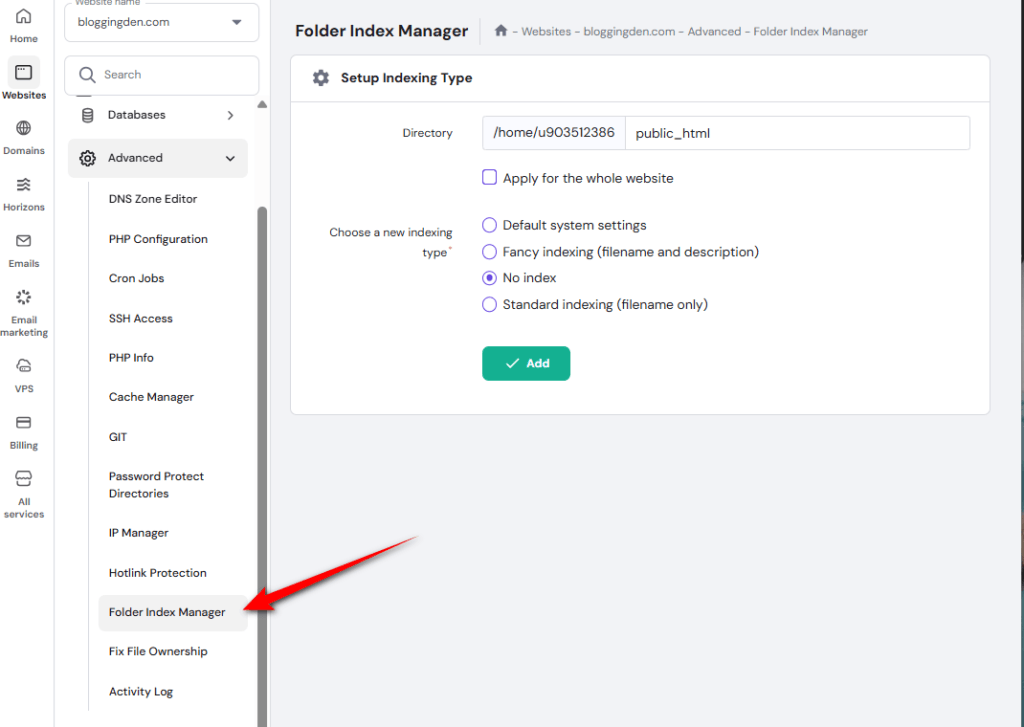
- In hPanel, go to Advanced → Folder Index Manager. Enter public_html as the directory. Set indexing to No index. Click Add to disable directory browsing.
- You can also create a new index.php file inside public_html using File Manager to ensure there is a default index file.
5. The page shows PHP code instead of rendering
- When your site outputs raw PHP code, it indicates that PHP is not being processed correctly on the server. This issue is often caused by missing or misconfigured PHP support.
- Confirm that your hosting plan supports PHP; using a WordPress-optimized host prevents most of these issues.
- Recheck the MySQL credentials in wp-config.php to ensure they are valid.
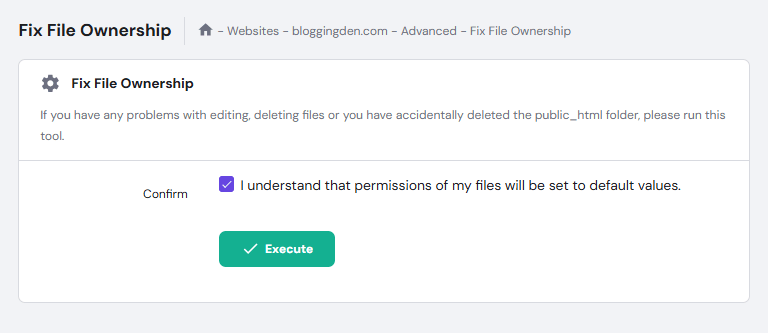
- In hPanel, go to Advanced → Fix File Ownership. This action resets file and folder permissions to 644 for files and 755 for directories. These settings are the recommended defaults.
- If none of these steps solves the problem, contact the hosting support team via live chat for further assistance. They are available 24/7 through hPanel.
How to Get Hostinger WordPress Hosting
Hostinger offers beginner‑friendly and affordable WordPress hosting plans, from basic shared hosting to high‑performance business options.
If you are launching a new WordPress website, Hostinger makes web hosting simple and fast. If you are migrating an existing site, domain management is straightforward with Hostinger.
Step 1: Visit Hostinger
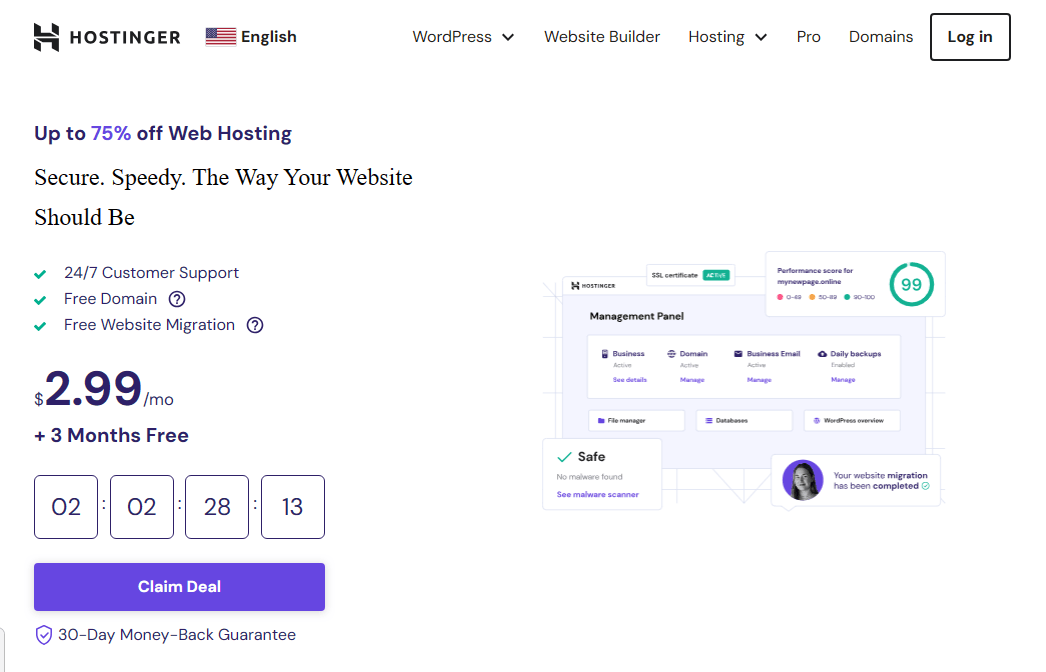
First, go to this special Hostinger discount link to unlock up to around 75% off on hosting plans. On the discounts page, click the Claim Deal button to move to the plan selection screen.
Step 2: Choose a WordPress hosting plan
Hostinger provides three shared hosting plans suitable for WordPress sites.
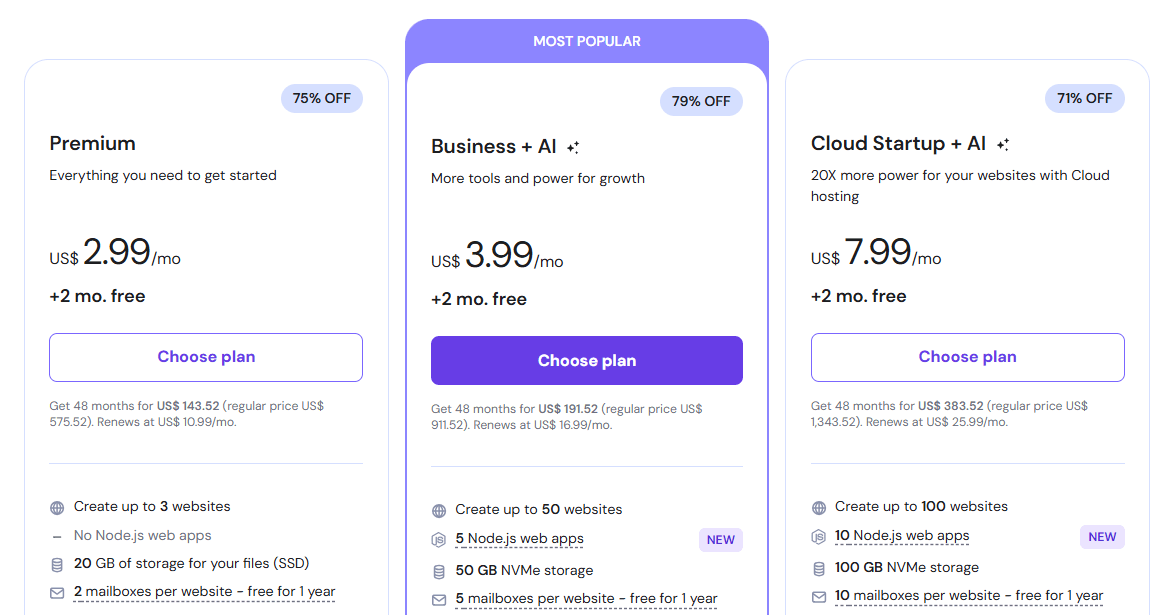
- Single Shared Hosting – From about $1.99/month, ideal for one small website with 50 GB SSD storage.
- Premium Shared Hosting – From about $2.99/month, supports up to 100 websites with 100 GB SSD storage.
- Business Shared Hosting – From about $3.99/month, supports up to 100 websites with 5x performance and 100 GB SSD storage.
All plans typically include:
- Free SSL certificate
- Email hosting
- CDN and caching
- Unlimited/big bandwidth and traffic
For long-term projects, choosing the Business plan for 12–24 months is beneficial. It helps unlock more features. This choice also avoids higher renewal costs. Click Add to cart on the plan that fits your needs.
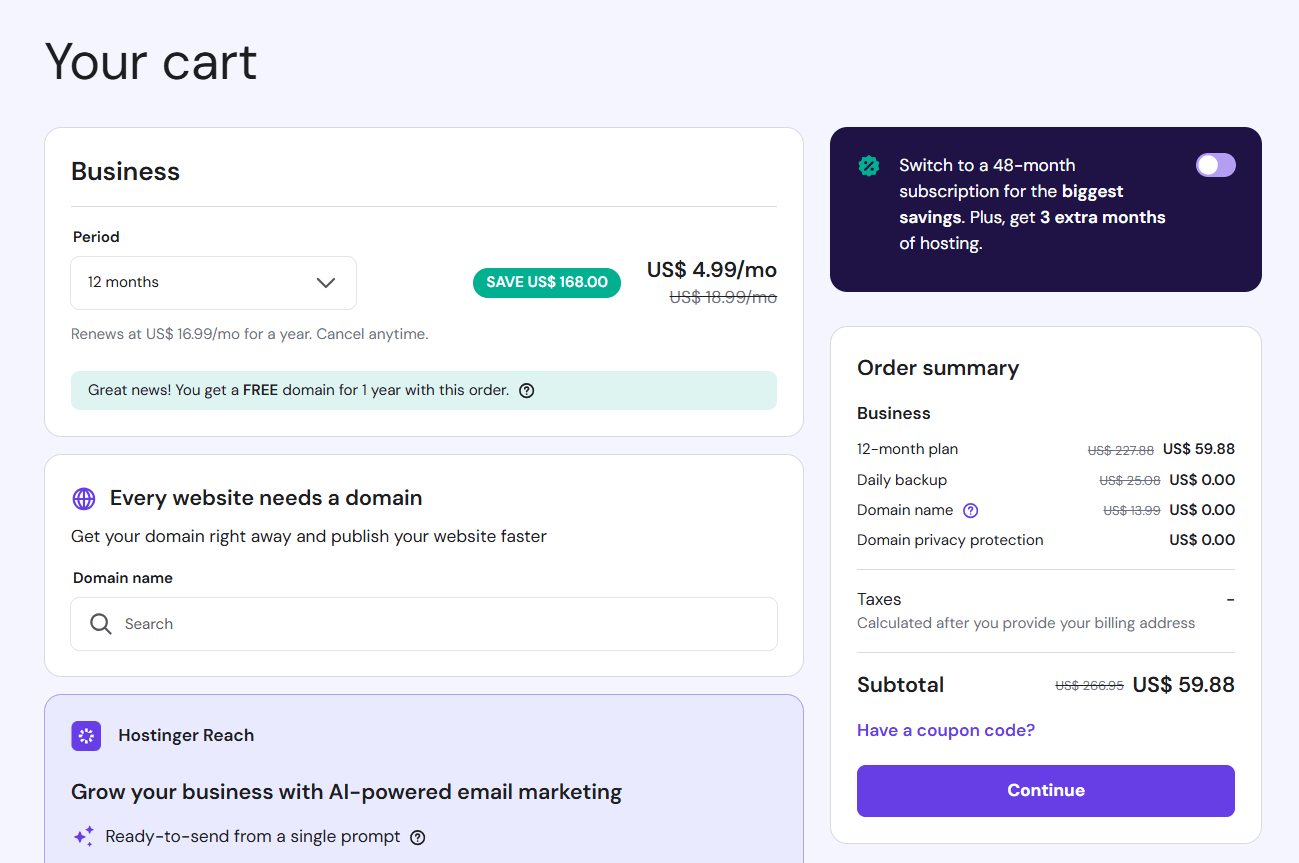
Step 3: Fill in your details and pay
On the checkout page, complete these sections:
- Choose a billing period: Select 12 or 24 months for the best monthly price.
- Create your account: Sign up using Google, Facebook, or your email address.
- Select payment method: Pay with credit card, PayPal, Google Pay, Alipay, or Coingate, depending on availability in your country. For Indian users, Google Pay is often a convenient option.
- Enter basic details: Fill in your name, phone number, address, and any coupon code you have.
Click Submit Secure Payment to finish the order. In just a few minutes, Hostinger will send you a welcome email. It will contain your login details to start your WordPress installation.
Register your domain and connect it to WordPress
The next step is to register a domain name and link it to your WordPress hosting. You can do this during signup or directly from your Hostinger dashboard.

- In your Hostinger account, click Claim Domain under Account Actions and search for your desired domain name.
- Choose a TLD such as .com, .net, or .org; many extensions start from around $9.99/year.
- Enable domain privacy protection if you want to hide your contact details from public WHOIS records.
- Complete the registration form with your contact information.
For new hosting customers, Hostinger usually provides one free domain for the first year. You do not pay extra at checkout. Once registered, the domain is automatically linked to your Hostinger account, and you can use it to install WordPress.
Start installing WordPress on Hostinger
Inside your Hostinger account, you will find an easy‑to‑use dashboard (hPanel). You can install WordPress in a few clicks using the WordPress onboarding. The Auto Installer tools are also available.
When you choose Hostinger, you are not just getting web hosting. You are getting a WordPress‑optimized platform. This platform helps you launch a fast, secure, and scalable website.
WordPress on Hostinger is an excellent choice if you want a low‑cost and powerful way to create a website. It is also user‑friendly and does not involve technical complexity.
Frequently Asked Questions on How to Install WordPress on Hostinger
What do I need before installing WordPress?
You need a web hosting account, a domain name, and basic server support for PHP and MySQL to install WordPress. Most WordPress hosting plans, like Hostinger’s, already include these requirements plus a free SSL certificate and one-click installer.
How many ways can I install WordPress?
You can install WordPress in four main ways. Use hPanel’s WordPress onboarding or hPanel’s Auto Installer. Alternatively, try Softaculous in cPanel or similar panels. You can also install WordPress manually. All methods create the same WordPress site; they just differ in automation and control.
What is the easiest way to install WordPress for beginners?
The easiest method for beginners is the guided WordPress onboarding flow in hPanel. It walks you through choosing a website type, theme, plugins, and even uses AI tools to generate starter content.
When should I use hPanel’s Auto Installer?
Use hPanel’s Auto Installer if you want to install WordPress on a subdomain or need a specific older WordPress version. It lets you set site details, version, language, and update preferences in a few clicks.
How do I install WordPress with Softaculous?
From cPanel, open Softaculous Apps Installer, choose WordPress, and fill in your site, admin, and database settings. Then pick https if you have SSL, select a theme, and click Install to complete the WordPress setup.
Why would I install WordPress manually?
Manual WordPress installation is helpful when there is no auto-installer. It is also beneficial when you want full control over files, the database, and the configuration. It is also useful for testing and setting up local or custom environments.
Can I install WordPress on my computer (locally)?
You can install WordPress locally on Windows or Mac. This allows you to test themes, plugins, and designs without affecting a live site. Later, you can migrate the local WordPress site to a hosting server when you are ready to go live.
What causes the “Error establishing a database connection” during install?
This error usually happens when the database name, username, password, or host in wp-config.php are incorrect, or the database is corrupted. Fix it by checking your MySQL details, resetting the password if needed, or creating a new database and updating wp-config.php.
How do I fix the WordPress white screen of death after installation?
Often this is caused by low PHP memory or damaged core files. Try restoring any recent file changes, re-uploading WordPress core files, increasing the PHP memory limit, and enabling WP_DEBUG in wp-config.php to see specific errors.
Is WordPress itself free?
Yes, WordPress.org is a free, open-source CMS that anyone can download and use. However, you still need paid web hosting and a domain name to make your WordPress website publicly accessible online.
Final words on WordPress Installation on Hostinger Servers
By now, you have seen how easy it is to install WordPress on Hostinger. You can use the onboarding wizard, hPanel Auto Installer, Softaculous, or a manual setup.
You also know how to secure and optimize your new WordPress website with a few essential settings. With a fast Hostinger WordPress hosting plan, you can start publishing content. A lightweight theme and the right plugins will help you grow your online presence.
To recap, there are four main ways to install WordPress on shared hosting:
- Using WordPress onboarding flow in hPanel – the most beginner‑friendly option for Hostinger Business and cloud hosting users.
- Using hPanel’s Auto Installer – ideal for installing WordPress on a subdomain or choosing an older WordPress version.
- Using Softaculous – the easiest way to install WordPress on hosting with cPanel, Plesk, DirectAdmin, or InterWorx.
- Installing WordPress manually takes more steps but gives you full control and is excellent for local testing or custom setups.
You want to build a full WordPress blog on Hostinger. Follow a comprehensive “how to start a blog on WordPress with Hostinger” guide. This guide covers choosing a niche, planning content, and monetization strategies.