
If you have a WordPress website, you may have come across URLs such as “sitemap.xml” or “wp-sitemap.xml” while working on SEO. But what exactly are these files, and do you really need one?
An XML sitemap is a file that lists important URLs on your website and helps search engines discover and crawl your content. It can be especially useful for new websites, large sites, frequently updated blogs, and pages that are difficult to discover through internal links.
WordPress can generate an XML sitemap automatically, while SEO plugins such as Rank Math and Yoast SEO can provide additional sitemap controls.
However, an important distinction is worth remembering: an XML sitemap does not guarantee that Google will index your pages or improve their rankings. It is primarily a discovery and crawling aid.
Quick Answer: What Is an XML Sitemap?
An XML sitemap is a machine-readable file that lists the important URLs of a website for search engines such as Google and Bing. It provides information that can help search engine crawlers discover pages, posts, images, or other eligible content on your website.
An XML sitemap is normally available at a URL such as example.com/sitemap.xml, or, on modern WordPress installations, example.com/wp-sitemap.xml.
The sitemap can contain URLs along with information such as the last meaningful modification date (<lastmod>). Search engines can use the sitemap as a discovery signal when crawling your website.
In simple terms: Your sitemap is a roadmap of important website URLs for search engines. It can help them discover your content, but having a URL in a sitemap does not guarantee that the page will be crawled, indexed, or ranked in Google.
What Is an XML Sitemap?
An XML sitemap is a structured file that helps search engines discover the important URLs on your website. It is primarily designed for search engine crawlers rather than human visitors. Understanding what the file contains and where to find it makes managing WordPress SEO much easier.
XML Sitemap Meaning
XML stands for Extensible Markup Language. It is a text-based format that uses tags to organize and describe information in a way that software can read.
A sitemap is essentially a list or map of important URLs on a website.
Put these together, and an XML sitemap is a machine-readable file containing URLs that you want search engines to discover and crawl.
For example, instead of a visitor navigating through your website to find a recently published blog post, a search engine crawler can use your XML sitemap to discover that URL.
An XML sitemap therefore acts as a discovery roadmap for search engines. It does not replace internal linking, and including a URL in the sitemap does not guarantee that Google will index it.
What Information Does an XML Sitemap Contain?
A basic XML sitemap contains several important elements.
- URL: The web address of a page, post, or other eligible content you want search engines to discover.
<loc>: The XML tag that specifies the complete URL of the page.<lastmod>: An optional value that indicates when the URL was last meaningfully modified.<urlset>: The container that holds the individual URL entries in a standard XML sitemap.- Sitemap index: A separate XML file that lists multiple sitemap files when a website has enough URLs to organize them into several sitemaps.
For most WordPress websites, you don’t need to manually write these elements. WordPress or an SEO plugin can generate and update the sitemap automatically.
What Does an XML Sitemap Look Like?
A simple XML sitemap may look like this:
<?xml version="1.0" encoding="UTF-8"?>
<urlset xmlns="http://www.sitemaps.org/schemas/sitemap/0.9">
  <url>
    <loc>https://example.com/my-blog-post/</loc>
    <lastmod>2026-09-01</lastmod>
  </url>
</urlset>
Here, <urlset> contains the sitemap, <url> represents an individual page, <loc> contains its complete URL, and <lastmod> provides the date of the last meaningful update.
Where Is an XML Sitemap Located?
The exact sitemap URL depends on how your website generates it. Common locations include:
/sitemap.xml— a common sitemap URL used by many websites./sitemap_index.xml— commonly used when an SEO plugin generates a sitemap index containing multiple sitemap files./wp-sitemap.xml— the default WordPress-generated sitemap location on modern WordPress installations.
For example, if your website is example.com, you might find your sitemap at:
https://example.com/sitemap.xml
https://example.com/sitemap_index.xml
https://example.com/wp-sitemap.xml
If one URL doesn’t work, don’t assume your website doesn’t have a sitemap. The sitemap location depends on your WordPress setup, SEO plugin, and configuration.
What Does an XML Sitemap Do?
The main purpose of an XML sitemap is to help search engines discover the important URLs on your website. Instead of relying only on links between your pages, search engines can also use your sitemap as an additional source of information about the content you want them to find.
An XML sitemap is particularly useful for new websites, large websites, frequently updated blogs, and pages that may not have many internal links.
1. Helps Search Engines Discover URLs
An XML sitemap provides search engines with a structured list of URLs that are available for discovery. This can help crawlers find important pages that might otherwise take longer to discover.
For example, when you publish a new blog post, your WordPress XML sitemap can be updated to include the new URL. Search engines can then discover that URL when they process the sitemap.
2. Helps Communicate Important Pages
A well-maintained sitemap can give search engines a clearer picture of the URLs you consider important enough to be discovered and crawled.
This doesn’t mean that every URL in a sitemap will necessarily be indexed. Your sitemap should therefore contain canonical, indexable URLs rather than every URL generated by your website.
3. Provides Information About Meaningful Page Updates
XML sitemaps can include a <lastmod> value that indicates when a page was meaningfully modified.
For example, if you substantially update an old SEO article with new information, an accurate <lastmod> date can communicate that change to search engines.
You shouldn’t change the date simply to make a page appear fresh when no meaningful content update has occurred.
4. Helps Search Engines Understand Large Websites
Large websites can contain thousands or even millions of URLs. Organizing important URLs through XML sitemaps and sitemap indexes makes it easier to manage these URLs at scale.
Separate sitemaps can be used for different types of content, such as posts, pages, categories, products, or other eligible URLs.
5. Helps Discover New or Less-Linked Pages
Some pages may have fewer internal links pointing to them, particularly on large websites or newly published content. An XML sitemap provides another way for search engines to discover these URLs.
However, important pages should still have appropriate internal links. A sitemap should support your site’s navigation and technical SEO—not replace them.
What an XML Sitemap Does NOT Do
Understanding what a sitemap doesn’t do is just as important as understanding its purpose.
- It doesn’t guarantee indexing: Adding a URL to an XML sitemap doesn’t mean Google will index it.
- It doesn’t guarantee rankings: A sitemap is not a shortcut to higher Google rankings.
- It isn’t a substitute for internal links: Important pages should still be connected through useful internal links.
- It doesn’t fix poor-quality content: A sitemap cannot make thin, duplicate, or unhelpful content valuable.
- It doesn’t override
noindex: If a page is intentionally markednoindex, simply adding it to a sitemap doesn’t force Google to index it. - It doesn’t replace proper technical SEO: You still need to address canonical URLs, redirects, crawlability, page status codes, site architecture, and other technical SEO issues.
In short: an XML sitemap is a discovery and crawling aid, not an indexing or ranking guarantee. The best results come from combining a clean sitemap with quality content, strong internal linking, and sound technical SEO.
Why Is an XML Sitemap Important for SEO?
An XML sitemap can make it easier for search engines to discover the important pages on your website. It is not a direct ranking factor or a replacement for good SEO, but it can be particularly useful when a website has many URLs, frequently publishes new content, or has pages that are not easily discovered through internal links.
1. New Websites and Blogs
A sitemap can be especially helpful for a new website or blog that has few external links and limited search-engine discovery signals. When you are starting a website, an XML sitemap provides search engines with a structured list of the URLs you want them to discover.
For a new WordPress blog, keeping the sitemap clean and submitting it through Google Search Console is a simple part of establishing a solid technical SEO foundation.
2. Large Websites
Large websites can have thousands or more URLs, making URL discovery and management more complicated. An XML sitemap helps organize important URLs, while a sitemap index can group multiple sitemap files together.
This is particularly useful for websites with separate sections, post types, categories, products, or other large collections of content.
3. Websites With Frequently Updated Content
Websites that regularly publish or substantially update content can benefit from maintaining an up-to-date XML sitemap.
For example, an active blog may publish several articles each week. A dynamically generated WordPress XML sitemap can reflect newly published URLs and meaningful content updates without requiring the site owner to manually edit a sitemap file.
4. Websites With Poorly Connected Pages
If some important pages have few internal links, they may be harder for crawlers to discover through normal website navigation.
An XML sitemap provides another discovery path for those URLs. However, this shouldn’t be an excuse for poor site architecture. Important pages should still be connected through relevant internal links.
5. News, Ecommerce, and Content-Heavy Websites
News websites, e-commerce stores, publishers, and content-heavy websites often contain large numbers of URLs and regularly changing content. For these sites, maintaining well-organized XML sitemaps can make URL discovery and technical SEO management easier.
Commerce websites, for example, may have thousands of product URLs, while publishers may continuously add new articles and update existing content.
When an XML Sitemap May Provide Little Additional Value
Not every website needs a complicated sitemap setup or a dedicated sitemap plugin.
A very small website with only a few pages, strong internal linking, and straightforward site architecture may receive relatively little additional benefit from a sitemap beyond the basic discovery signal.
That doesn’t mean you should remove a working sitemap. A clean, automatically generated XML sitemap is generally easy to maintain, especially with modern WordPress.
The important point is to avoid creating unnecessary complexity. You don’t need to install a sitemap plugin simply because you have a WordPress website. WordPress can generate a basic sitemap automatically, while SEO plugins can provide additional control when your site’s requirements justify it.
How Does an XML Sitemap Work?
An XML sitemap works by giving search engines a structured list of important URLs on your website. It helps crawlers discover pages more efficiently, especially when some URLs are new, deeply buried, or not strongly connected through internal links.
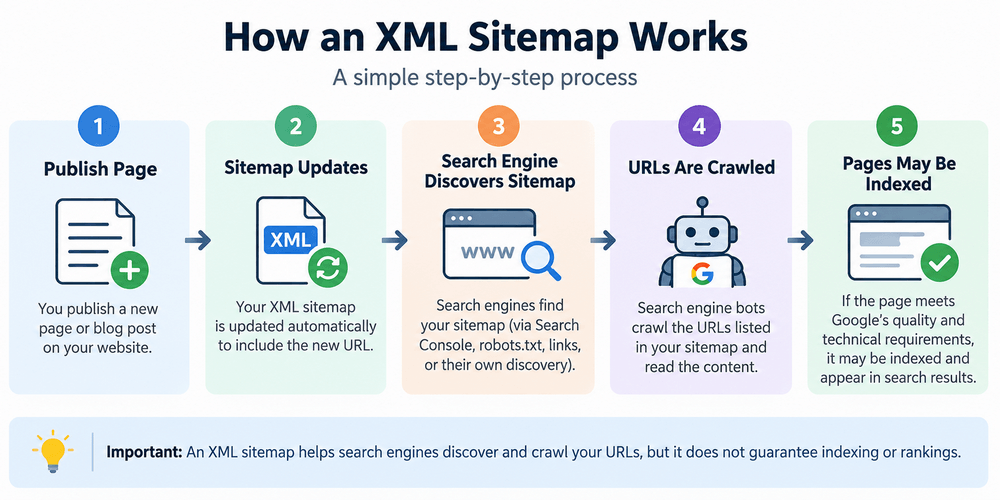
The basic process looks like this:
Publish page → Sitemap updates → Search engine discovers sitemap → URLs are crawled → Pages may be indexed
For example, when you publish a new WordPress post, your sitemap may update automatically to include that URL. Search engines can then find the sitemap, discover the new page, crawl it, and decide whether the page should be added to their index.
1. Sitemap Discovery
Before a search engine can use your XML sitemap, it needs to discover it. There are several common ways this happens.
- Google Search Console: You can manually submit your sitemap in Google Search Console. This gives Google a direct location for the sitemap you want it to process.
- robots.txt: You can also reference your sitemap inside the
robots.txtfile using a sitemap directive. This helps search engine crawlers locate it while accessing your website. - Links: Search engines may discover URLs through normal internal and external links even before processing the sitemap.
- Search-engine discovery: Search engines can also find sitemap locations through their own crawling and previously known site information.
For best results, a sitemap should support your existing site structure rather than act as the only method of URL discovery.
Crawling vs Indexing
One of the most important SEO concepts to understand is the difference between crawling and indexing.
- Crawling happens when a search engine bot visits a URL and reads its content.
- Indexing happens when the search engine evaluates that page and chooses to store it in its search index, where it may become eligible to appear in search results.
A page can therefore be:
- discovered but not crawled,
- crawled but not indexed,
- indexed but not highly ranked.
An XML sitemap mainly helps with discovery and crawling. It does not control Google’s final indexing decision.
Does Submitting a Sitemap Guarantee Indexing?
No. Submitting an XML sitemap does not guarantee that your pages will be indexed.
Google still evaluates each URL based on factors such as crawlability, canonicalization, duplication, content quality, technical accessibility, and indexing directives.
For example, a URL may appear in your sitemap.xml but remain unindexed if it contains thin content, redirects elsewhere, uses noindex, has a conflicting canonical URL, or provides little value.
The best approach is to use your XML sitemap together with strong internal linking, useful content, clean technical SEO, and proper indexing settings. A sitemap helps search engines find your pages, but whether those pages are indexed and ranked depends on the overall quality and technical condition of the website.
What Does an XML Sitemap Look like?
An XML sitemap is a simple text file that uses XML tags to organize the URLs you want search engines to discover. Although the file may look technical at first, its basic structure is easy to understand.
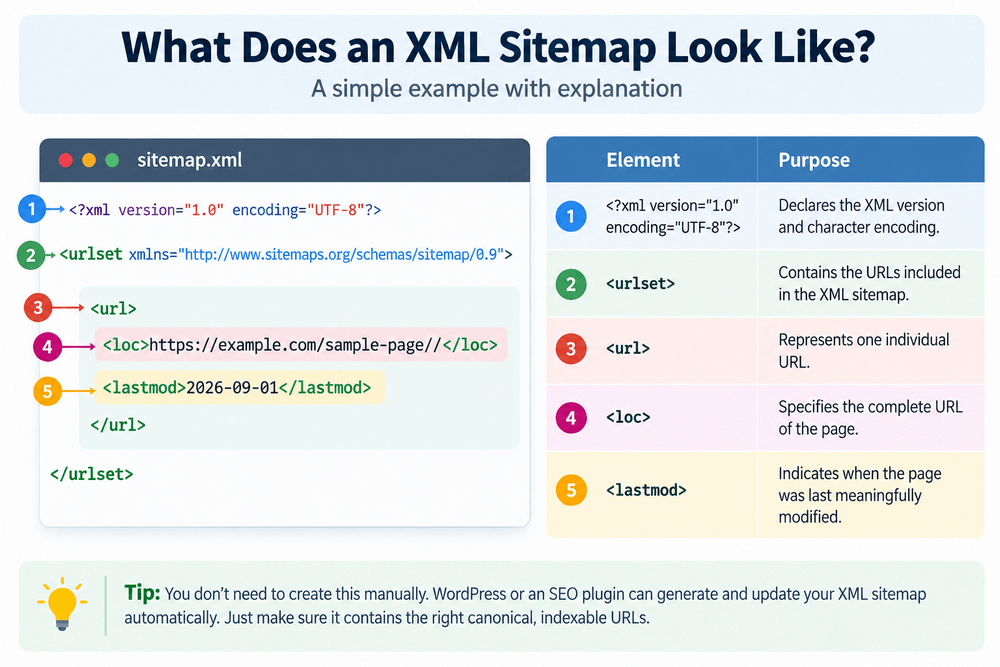
Here is a simple XML sitemap example:
<?xml version="1.0" encoding="UTF-8"?>
<urlset xmlns="https://www.sitemaps.org/schemas/sitemap/0.9">
  <url>
    <loc>https://example.com/sample-page/</loc>
    <lastmod>2026-09-01</lastmod>
  </url>
</urlset>
This example contains one page URL. A real sitemap can contain many URLs, with each URL represented by its own <url> element.
Understanding the XML Sitemap Elements
You don’t normally need to create these tags manually when using WordPress because WordPress or an SEO plugin can generate the sitemap for you. However, understanding the basic elements helps when checking your sitemap for errors.
| Element | Purpose |
|---|---|
<urlset> | Contains the URLs included in the XML sitemap |
<url> | Represents one individual URL |
<loc> | Specifies the complete URL of the page |
<lastmod> | Indicates when the page was last meaningfully modified |
The <urlset> element acts as the main container for the sitemap. Inside it, each <url> element represents an individual page.
The <loc> element is particularly important because it identifies the exact URL that search engines can discover. You should use the canonical version of the URL rather than duplicate or redirected versions.
The optional <lastmod> element tells search engines when the page was last meaningfully updated. For example, if you substantially revise an article with new information, its <lastmod> date can be updated accordingly.
You may see additional sitemap structures, such as a sitemap index, when a website has multiple sitemap files. WordPress SEO plugins commonly organize large collections of URLs this way.
Tip: You don’t need to memorize XML syntax. For most WordPress websites, the important task is making sure your generated sitemap contains the right canonical, indexable URLs and can be accessed successfully by search engines.
What URLs Should Be Included in an XML Sitemap?
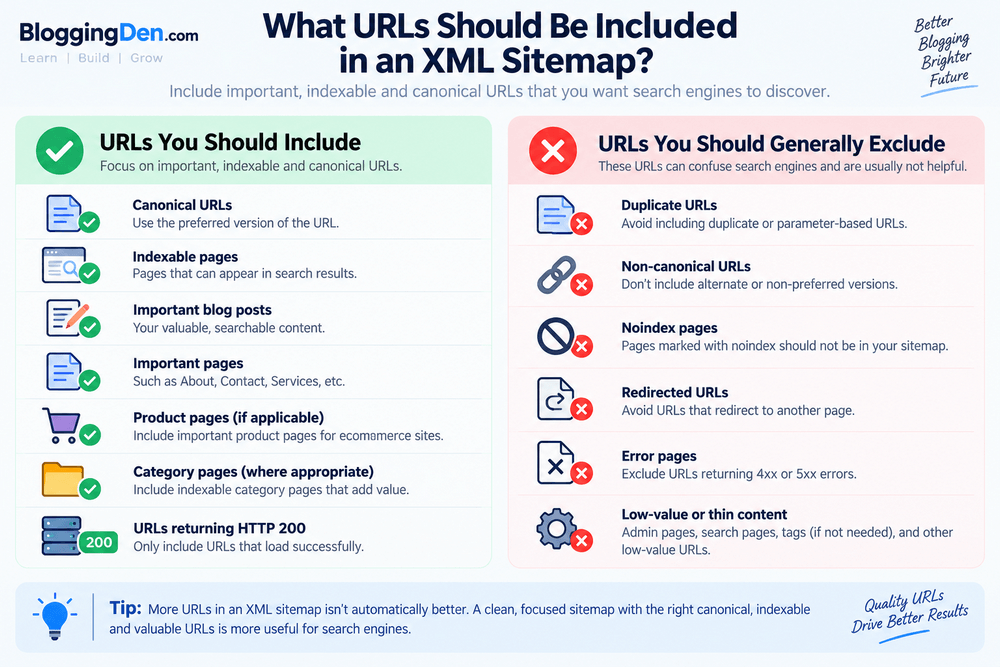
An XML sitemap should contain the important, indexable URLs that you want search engines to discover and potentially include in their search index. The goal isn’t to create a complete list of every URL your website can generate. Instead, your sitemap should provide a clean and useful list of the pages that matter to your SEO strategy.
What URLs Should You Include?
Canonical URLs should generally be included because they represent the preferred version of a page. If multiple URLs contain similar or duplicate content, avoid placing non-canonical versions in your sitemap.
Indexable pages are another important category. If a page is intended to appear in search results and isn’t blocked by an indexing directive, it can be a candidate for your XML sitemap.
For a typical WordPress blog, this can include:
- Important blog posts that provide useful, searchable content.
- Important pages such as your About, services, or other valuable landing pages.
- Product pages, where applicable, particularly for ecommerce websites.
- Category pages, when those categories provide useful, indexable content and are part of your SEO strategy.
- URLs returning HTTP 200, meaning the URL successfully loads and provides the expected page rather than returning an error or redirect.
The key principle is simple: include URLs that you want search engines to discover and that are eligible to be indexed.
Should You Include Every URL?
No. More URLs in an XML sitemap isn’t automatically better.
Adding every URL your website generates can make the sitemap less useful. For example, you generally don’t want to fill it with duplicate URLs, redirected URLs, error pages, or pages that you have deliberately marked noindex.
Think of your sitemap as a curated list of important URLs, not a database of everything that exists on your website.
For example, suppose your WordPress site has 500 URLs, but only 300 are canonical, indexable pages that you consider valuable. Including those 300 relevant URLs is generally more useful than placing all 500 URLs into the sitemap.
Your sitemap and your overall indexing strategy should also agree. If a URL is canonical, indexable, accessible, and valuable, it is a strong sitemap candidate. If you don’t want a page indexed, don’t use the sitemap to suggest that it should be.
A clean sitemap makes it easier to identify technical SEO problems and gives search engines a clearer set of URLs to discover and crawl.
What URLs Should NOT Be Included in an XML Sitemap?
A good XML sitemap should contain more than just a list of URLs—it should contain the right URLs. Including URLs that cannot be indexed, redirect elsewhere, return errors, or provide little value can make your sitemap less useful and create inconsistencies between your sitemap and your overall SEO strategy.
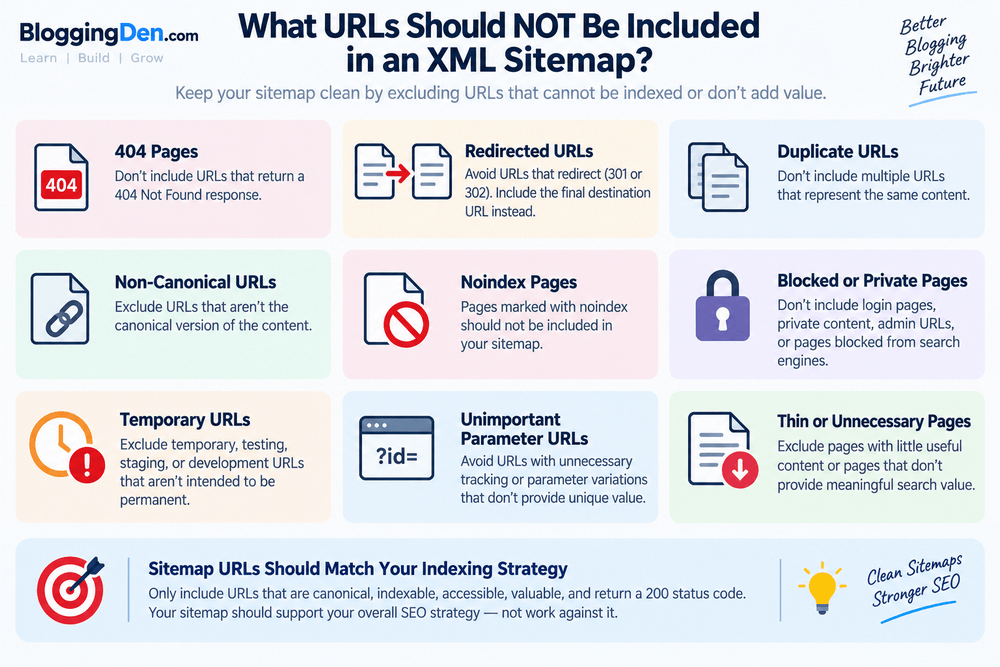
As a general rule, don’t include a URL in your sitemap if you don’t want search engines to index that URL.
Here are the main types of URLs you should generally avoid.
URLs to Avoid in Your XML Sitemap
- 404 pages: Don’t include URLs that return a
404 Not Foundresponse because the requested page no longer exists. - Redirected URLs: Avoid URLs that redirect to another page, such as URLs returning a
301or302redirect. Include the final destination URL instead when it is canonical and indexable. - Duplicate URLs: Don’t include multiple URLs that represent the same content. Duplicate URLs can make your sitemap unnecessarily large and less focused.
- Non-canonical URLs: If another URL is declared as the canonical version, the non-canonical URL generally shouldn’t appear in your sitemap. Your sitemap should reinforce your preferred URL structure.
noindexpages: Pages marked withnoindexare intentionally excluded from search-engine indexes. Including them in your sitemap sends a conflicting signal about whether the page should be indexed.- Blocked or private pages: Don’t include login pages, private content, admin URLs, or pages that search engines aren’t supposed to access.
- Temporary URLs: Avoid temporary, testing, staging, or development URLs that aren’t intended to become permanent search results.
- Unimportant parameter URLs: URLs containing unnecessary tracking or parameter variations can create duplicates and should generally be excluded when they don’t represent unique, valuable content.
- Thin or unnecessary pages: Pages with little useful content or pages that don’t provide meaningful search value generally don’t need to be promoted through your XML sitemap.
Sitemap URLs Should Match Your Indexing Strategy
Your XML sitemap and indexing strategy should tell a consistent story.
Think of it this way:
- Sitemap → “These are the important URLs I want search engines to discover.”
- Canonical → “This is the preferred version of this content.”
- Indexing directive → “This page can or cannot be included in the search index.”
When these signals disagree, your sitemap becomes less useful. For example, placing a URL in your sitemap while simultaneously marking it noindex creates conflicting signals about your intentions.
Ideally, the URLs in your sitemap should be canonical, indexable, accessible, valuable, and return a successful HTTP 200 response.
For a WordPress blog, this means your sitemap should focus primarily on valuable posts, pages, and other content that you genuinely want to appear in search results—not every URL WordPress or a plugin happens to generate.
The goal isn’t to have the biggest sitemap. The goal is to have a clean sitemap containing the URLs that matter to your SEO strategy.
XML Sitemap vs HTML Sitemap
Although both an XML sitemap and an HTML sitemap can contain links to pages on your website, they serve different purposes. The main difference is who they are designed for.
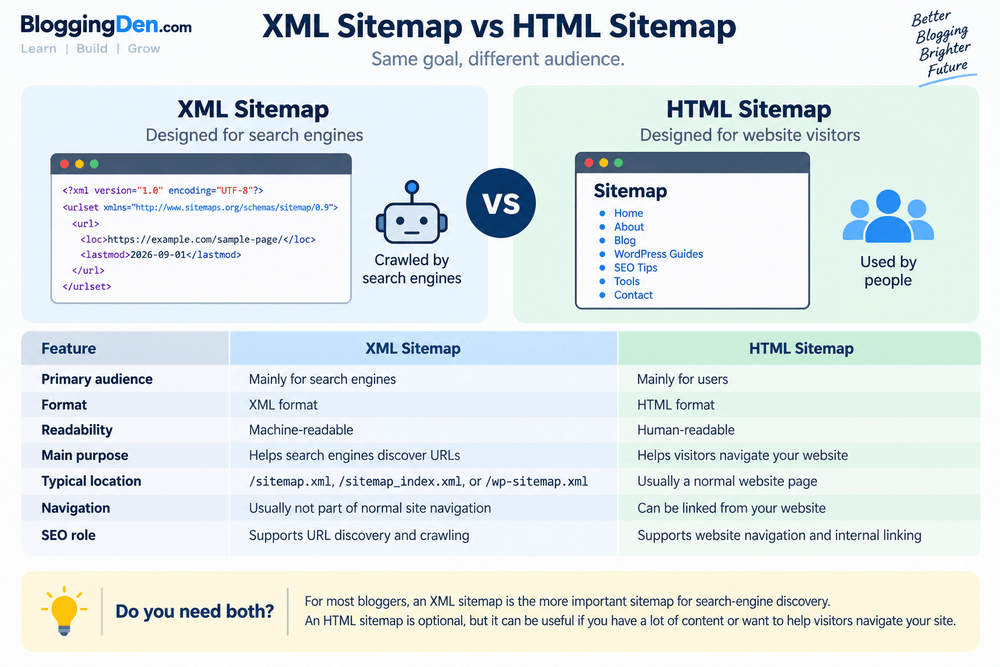
An XML sitemap is primarily created for search engines and helps crawlers discover URLs. An HTML sitemap is designed for website visitors and provides another way to navigate through your content.
| Feature | XML Sitemap | HTML Sitemap |
|---|---|---|
| Primary audience | Mainly for search engines | Mainly for users |
| Format | XML format | HTML format |
| Readability | Machine-readable | Human-readable |
| Main purpose | Helps search engines discover URLs | Helps visitors navigate your website |
| Typical location | /sitemap.xml, /sitemap_index.xml, or /wp-sitemap.xml | Usually a normal website page |
| Navigation | Usually not part of normal site navigation | Can be linked from your website |
| SEO role | Supports URL discovery and crawling | Supports website navigation and internal linking |
What Is an XML Sitemap?
An XML sitemap provides search engines with a structured list of URLs that you want them to discover and crawl. It is not normally designed for visitors to browse.
For example, a WordPress website might have an XML sitemap at example.com/wp-sitemap.xml or an SEO-plugin-generated sitemap index at example.com/sitemap_index.xml.
What Is an HTML Sitemap?
An HTML sitemap is a regular web page containing links to important sections or pages of your website. Visitors can use it to find content that may be difficult to locate through your normal navigation.
Because these links are actual HTML links, an HTML sitemap can also contribute to your site’s internal linking structure.
Do You Need Both?
Not necessarily, but they can complement each other.
For most bloggers, an XML sitemap is the more important sitemap to maintain for search-engine discovery. Modern WordPress websites can generate one automatically, so you may not need to create it manually.
An HTML sitemap can be useful if your website has a lot of content or complex navigation, or you want to provide visitors with an additional overview of your site’s pages.
Think of them this way:
- XML sitemap → helps search engines discover your URLs.
- HTML sitemap → helps people navigate your website.
If you run a small WordPress blog with clear navigation and strong internal linking, you may not need a separate HTML sitemap. But maintaining a clean XML sitemap is still a useful part of your technical SEO setup.
XML Sitemap vs Robots.txt
XML sitemap and robots.txt are both important technical SEO files, but they serve completely different purposes. Confusing the two can lead to incorrect assumptions about how search engines discover and crawl your website.
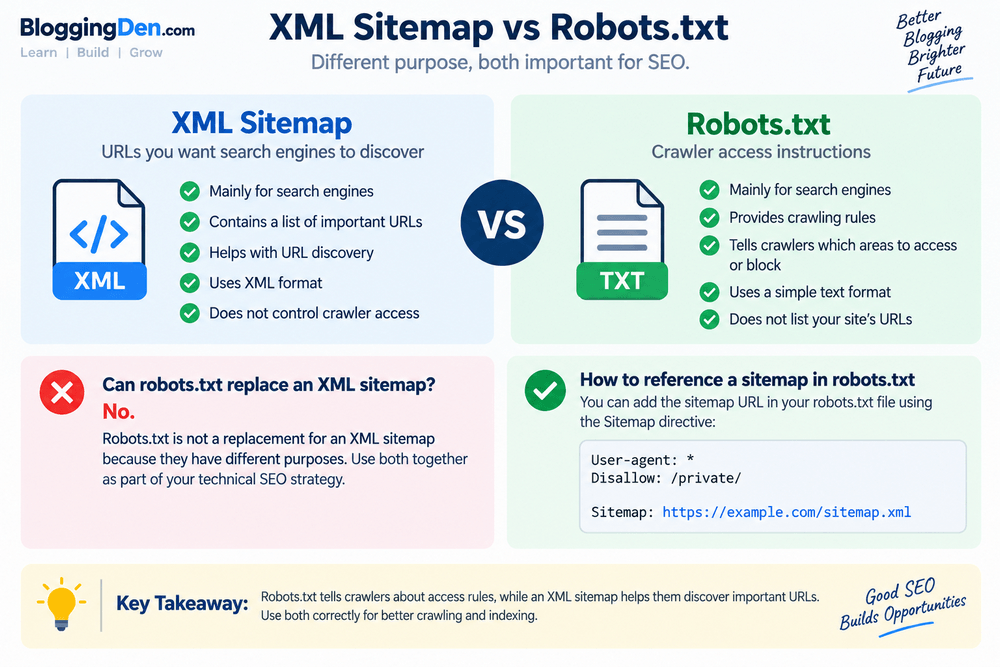
The simplest way to remember the difference is:
XML sitemap = “Here are the important URLs I want search engines to discover.”
robots.txt = “Here are the crawling rules for my website.”
An XML sitemap provides search engines with a structured list of URLs. It can help crawlers discover important pages, especially on large websites, new websites, or sites with pages that aren’t strongly connected through internal links.
A robots.txt file, on the other hand, provides instructions to compliant crawlers about which areas of a website they may or may not access.
Can robots.txt Replace an XML Sitemap?
No.
A robots.txt file is not a replacement for an XML sitemap because the two files have different jobs.
For example, a robots.txt file can help prevent crawlers from accessing certain areas of your website, while an XML sitemap can point search engines toward the URLs you want them to discover.
You can use both together as part of your technical SEO strategy.
Also remember that robots.txt should not be treated as a reliable way to prevent a URL from appearing in search results. If you need a page excluded from indexing, use the appropriate indexing controls rather than relying solely on robots.txt.
How to Reference a Sitemap in robots.txt
You can provide the location of your XML sitemap in your robots.txt file using the Sitemap directive:
User-agent: *
Disallow: /private/

Sitemap: https://example.com/sitemap.xml
If your WordPress website uses a sitemap index, you can reference that instead:
Sitemap: https://example.com/sitemap_index.xmlThe sitemap URL should point to the actual, accessible sitemap location on your website.
In short: robots.txt tells crawlers about access rules, while an XML sitemap helps them discover important URLs. Using both correctly gives search engines clearer technical signals about your website.
WordPress XML Sitemap: Does WordPress Create One Automatically?
Yes. Modern WordPress can generate an XML sitemap automatically, so you don’t need to install a separate sitemap plugin just to create a basic sitemap.
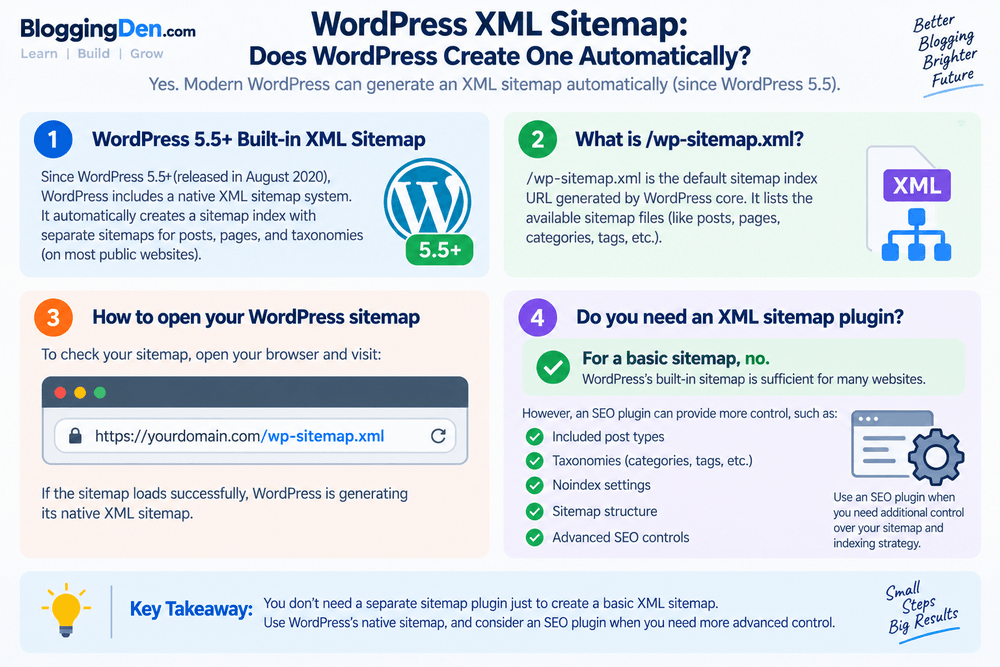
WordPress introduced built-in XML sitemap functionality in WordPress 5.5, released in August 2020. The feature provides a sitemap index that helps search engines discover important content on a WordPress website.
This is an important difference from older WordPress SEO tutorials that recommend installing a dedicated XML sitemap generator. For a standard WordPress website, the basic sitemap functionality is already part of WordPress core.
WordPress 5.5+ Built-in XML Sitemap
Since WordPress 5.5, WordPress includes a native XML sitemap system. By default, sitemap functionality is enabled for public websites.
WordPress can organize different types of content into separate sitemap files, including posts and taxonomies, with a main sitemap index pointing to the available sitemap files.
This means a typical WordPress blog can have a working XML sitemap without installing an additional sitemap-generation plugin.
What Is /wp-sitemap.xml?
/wp-sitemap.xml is the default sitemap index URL generated by WordPress core when pretty permalinks are being used. WordPress registers this route as its main sitemap index.
For example, if your website is:
https://yourdomain.com/your WordPress sitemap may be available at:
https://yourdomain.com/wp-sitemap.xmlThe sitemap index can then point to individual sitemap files containing different groups of URLs.
How to Open Your WordPress Sitemap
You can check your sitemap in just a few seconds.
Open your browser and add:
yourdomain.com/wp-sitemap.xmlFor example:
https://example.com/wp-sitemap.xmlIf the sitemap loads successfully, WordPress is generating its native XML sitemap.
If you use an SEO plugin such as Rank Math or Yoast SEO, however, your website may use that plugin’s sitemap system instead. In that situation, the sitemap URL and structure can be different.
Do You Need an XML Sitemap Plugin?
For a basic WordPress XML sitemap, no.
WordPress’s built-in sitemap is sufficient for many websites. You may still choose an SEO plugin when you need more control over your sitemap and indexing strategy.
Depending on the plugin and configuration, additional controls can include:
- Included post types
- Taxonomies
- Noindex settings
- Sitemap structure
- Advanced SEO controls
The important thing is not to install a plugin simply because an old tutorial says every WordPress website needs a sitemap generator.
Use WordPress’s native sitemap when its functionality meets your needs. Use an SEO plugin when you need additional control over which content is included and how your site’s broader SEO settings are managed.
How to Find Your WordPress XML Sitemap
Finding your WordPress XML sitemap is usually easy. The exact sitemap URL depends on whether you use WordPress’s built-in sitemap system or an SEO plugin such as Rank Math or Yoast SEO.
Method 1: WordPress Default Sitemap
If you’re using the WordPress built-in XML sitemap, add the following path to your domain:
https://yourdomain.com/wp-sitemap.xml
For example:
https://example.com/wp-sitemap.xml
If the page loads successfully, WordPress is generating its native sitemap.
Method 2: Rank Math Sitemap
If you’re using Rank Math, your sitemap is commonly available through a sitemap index:
https://yourdomain.com/sitemap_index.xml
The sitemap index can contain separate sitemap files for different types of content, such as posts, pages, or categories, depending on your Rank Math settings.
Method 3: Yoast SEO Sitemap
If you use Yoast SEO, the sitemap location can also differ from WordPress’s native /wp-sitemap.xml location.
Yoast SEO commonly uses a sitemap index such as:
https://yourdomain.com/sitemap_index.xml
The important thing is to check which sitemap system is active on your website rather than assuming that every WordPress site uses the same URL.
Method 4: Check robots.txt
Another simple way to find your XML sitemap URL is to check your website’s robots.txt file:
https://yourdomain.com/robots.txt
Look for a line beginning with:
Sitemap:
For example:
Sitemap: https://yourdomain.com/sitemap_index.xml
Tip: If you use an SEO plugin, use the sitemap it generates rather than submitting multiple competing sitemap URLs. Your goal is to identify the active, accessible sitemap that contains your site’s important URLs.
How to Create an XML Sitemap in WordPress
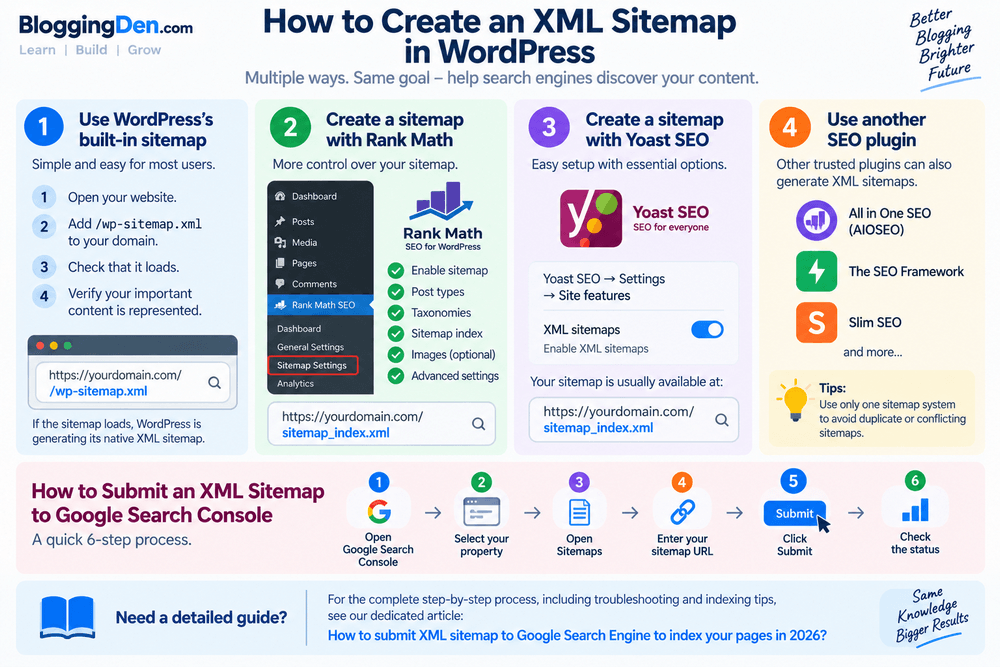
Creating an XML sitemap in WordPress is easier than it used to be. You don’t necessarily need a dedicated sitemap generator because WordPress includes a basic sitemap system, while SEO plugins such as Rank Math and Yoast SEO provide additional control over which content appears in your sitemap.
Method 1 — Use WordPress’s Built-in Sitemap
For many WordPress websites, the simplest option is to use the sitemap generated by WordPress itself.
Follow these steps:
1. Open your website
Visit your WordPress website in a browser.
2. Add /wp-sitemap.xml
Append the following path to your domain:
https://yourdomain.com/wp-sitemap.xml3. Check that it loads
If the XML sitemap opens successfully, WordPress is generating its native sitemap.
4. Verify your important content is represented
Check that the sitemap contains the important post, page, and other eligible URLs you want search engines to discover.
If your website uses an SEO plugin that manages XML sitemaps, you may see a different sitemap location instead.
Method 2 — Create a Sitemap With Rank Math
If you’re using Rank Math, you can manage your XML sitemap from the WordPress dashboard. Rank Math provides sitemap settings for post types and taxonomies, along with options for controlling which content is included.
Start by opening:
WordPress Dashboard → Rank Math SEO → Sitemap Settings
Depending on your Rank Math configuration, you can review settings such as:
- Post types — Choose which public content types should appear in the sitemap.
- Taxonomies — Control categories, tags, and other taxonomies.
- Sitemap index — Rank Math can organize multiple sitemap files under a sitemap index.
- Links per sitemap — Control how many URLs are included in individual sitemap files.
- Images — Configure whether images are included where supported.
For example, Rank Math’s current documentation confirms that post types and taxonomies can be included or excluded through its Sitemap Settings.
After configuring the settings, save your changes and test the generated sitemap by opening its sitemap index URL, commonly:
https://yourdomain.com/sitemap_index.xmlMake sure the sitemap loads and contains the canonical, indexable URLs you actually want search engines to discover.
Method 3 — Create a Sitemap With Yoast SEO
Yoast SEO can also automatically generate XML sitemaps and keep its sitemap index updated as you add, remove, or change content.
In the current Yoast interface, go to:
WordPress Dashboard → Yoast SEO → Settings → Site features
Under Technical SEO, make sure XML sitemaps is enabled. Yoast provides an option to view the generated sitemap directly from this area.
Yoast’s sitemap index is commonly available at:
https://yourdomain.com/sitemap_index.xmlMethod 4 — Use Another SEO Plugin
You can also use another reputable WordPress SEO plugin that provides XML sitemap functionality.
The important thing is not which plugin you choose, but how well your sitemap matches your indexing strategy. Avoid running multiple sitemap generators unnecessarily, as this can create duplicate or conflicting sitemap systems.
For most bloggers, one properly configured sitemap system is enough.
How to Submit an XML Sitemap to Google Search Console
Once your XML sitemap is working, you can tell Google where to find it through Google Search Console. Google’s Sitemaps report lets site owners submit sitemaps and monitor whether Google encountered problems processing them.
Follow these basic steps:
- Open Google Search Console and sign in.
- Select your website property.
- Open Sitemaps from the Search Console navigation.
- Enter your sitemap URL, such as
sitemap_index.xmlorwp-sitemap.xml. - Click Submit.
- Check the status to see whether Google successfully processed the sitemap.
Submitting a sitemap tells Google where the sitemap is located; it doesn’t upload the sitemap file to Google.
For the complete step-by-step process, including how to troubleshoot sitemap submission and indexing issues, see BloggingDen’s dedicated guide:
How to Submit an XML Sitemap to the Google Search Engine to Index Your Pages in 2026
Keeping the detailed submission instructions in that dedicated article helps avoid keyword cannibalization while allowing this article to remain focused on what an XML sitemap is, how it works, and how to create one in WordPress.
Simple Sitemap Submission Tool?
If you want a quick way to submit and manage sitemap URLs, you can also try the Sitemap Submission Tool by DigiSatish. It provides a simple interface for working with sitemap submission, which can be useful for bloggers and website owners who want an easier workflow alongside their regular Google Search Console setup.
How to Check Whether Google Processed Your Sitemap
After submitting your XML sitemap to Google Search Console, don’t assume the process is complete just because you clicked Submit. Search Console provides information about whether Google was able to access and process your sitemap.
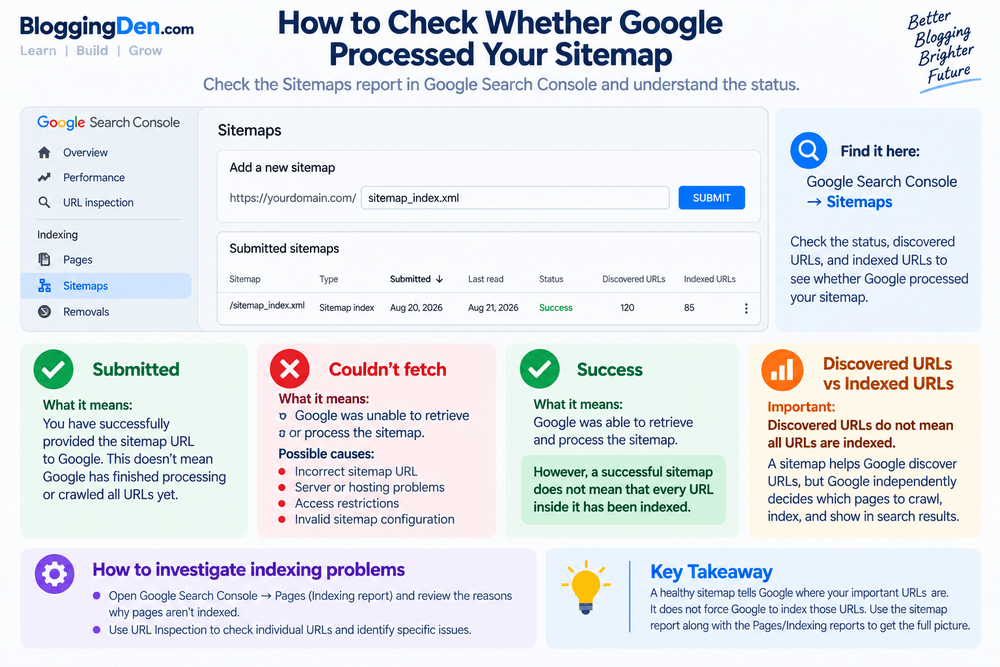
You can check this from Google Search Console → Sitemaps. The status and URL information can help you identify whether your sitemap is working correctly or whether further investigation is needed.
Submitted
A Submitted status means you have successfully provided the sitemap URL to Google Search Console. However, this doesn’t necessarily mean that Google has finished processing the sitemap or crawled every URL listed in it.
Give Google time to process a newly submitted sitemap before assuming there is a problem.
Couldn’t Fetch
If Search Console reports “Couldn’t fetch,” Google was unable to retrieve or process the sitemap at that time.
Possible causes can include:
- Incorrect sitemap URL
- Server or hosting problems
- Temporary availability issues
- Access restrictions
- Invalid sitemap configuration
- Problems with the XML file
First, open the sitemap URL directly in your browser and make sure it loads successfully. Then check your site’s technical configuration if the problem continues.
Success
A successful sitemap status indicates that Google was able to retrieve and process the sitemap.
However, a successful sitemap does not mean that every URL inside it has been indexed. Sitemap processing and page indexing are separate processes.
Discovered URLs vs Indexed URLs
This distinction is extremely important.
Discovered URLs do not mean all URLs are indexed.
A sitemap can help Google discover URLs, but Google independently decides which pages to crawl, index, and show in search results.
For example, your sitemap might contain 100 URLs, while only some of those URLs are currently indexed. This isn’t necessarily a sitemap error.
A page can be discovered but remain unindexed because of issues involving content quality, duplication, canonicalization, indexing directives, crawlability, or other factors.
How to Investigate Indexing Problems
If important pages aren’t appearing in Google, don’t rely only on the sitemap report.
Open Google Search Console → Pages (the indexing report) and review the reasons Google has provided for pages that aren’t indexed.
You can also inspect individual URLs using URL Inspection to check their indexing status and identify potential technical issues.
The key takeaway is simple:
A healthy sitemap tells Google where your important URLs are. It does not force Google to index those URLs.
Use the sitemap report to verify that Google can access your sitemap, then use the Pages/Indexing reports and URL Inspection to investigate individual indexing problems.
XML Sitemap Size and URL Limits
XML sitemaps have specific size limits that you need to consider when managing a large website. For most bloggers, these limits will never become an issue, but they become important as your website grows.
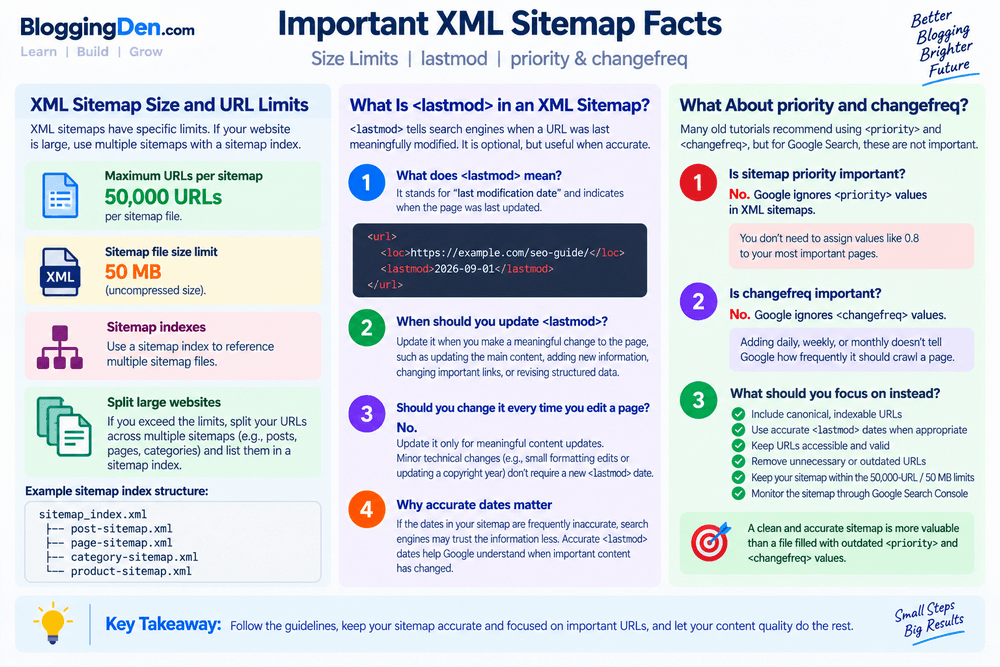
A single sitemap can contain up to 50,000 URLs or be up to 50 MB in uncompressed size, whichever limit is reached first.
If your website exceeds either limit, don’t try to force everything into one file. Instead, split the URLs across multiple sitemap files and organize them using a sitemap index.
For example:
sitemap_index.xml
├── post-sitemap.xml
├── page-sitemap.xml
├── category-sitemap.xml
└── product-sitemap.xml
A sitemap index can reference multiple sitemap files, making it easier for search engines to process large collections of URLs. Google also allows up to 50,000 sitemap index files per Search Console property.
You can also compress sitemap files with gzip to reduce bandwidth, but the 50 MB limit applies to the uncompressed sitemap.
For most WordPress websites, you don’t need to manage these limits manually. WordPress and SEO plugins can automatically split large collections of URLs into separate sitemap files.
What Is <lastmod> in an XML Sitemap?
The <lastmod> element tells search engines when a particular URL was last meaningfully modified. It is optional, but when used accurately, it can provide useful information about content updates.
What Does <lastmod> Mean?
<lastmod> stands for last modification date.
For example:
<url>
  <loc>https://example.com/seo-guide/</loc>
  <lastmod>2026-09-01</lastmod>
</url>
Here, 2026-09-01 indicates when the page was last meaningfully updated.
Google says it can be used <lastmod> when the value is consistently accurate and verifiable, such as by comparing it with the actual modification of the page.
When Should You Update <lastmod>?
Update <lastmod> when you make a meaningful change to the page.
Examples include:
- Updating the main content
- Adding substantial new information
- Updating important links
- Changing relevant structured data
- Significantly revising the page
Google specifically identifies changes to main content, structured data, or links as examples of potentially significant updates.
Should You Change It Every Time You Edit a Page?
No.
There’s an important difference between a meaningful content update and a minor technical modification.
For example, substantially rewriting an outdated section of an article is a meaningful update. Simply changing a copyright year, making a tiny formatting adjustment, or making an insignificant backend change generally isn’t.
The goal is to make it <lastmod> accurately reflect the last significant update to the page, rather than simply changing the date whenever something on the website changes.
Why Inaccurate <lastmod> Dates Can Reduce Trust in Sitemap Signals
If your sitemap repeatedly reports dates that don’t correspond to meaningful page changes, the information becomes less useful.
Google’s guidance emphasizes that it <lastmod> should be consistent and verifiable. Accurate dates can help Google understand when important content has changed, while inaccurate dates shouldn’t be used simply to make old content appear freshly updated.
Best practice: Let WordPress or your SEO plugin generate <lastmod> automatically when possible, provided its dates accurately reflect meaningful page updates.
What about priority and changefreq?
Older XML sitemap tutorials often recommend adding <priority> and <changefreq> to every URL. For Google Search, however, these recommendations are outdated.
Is sitemap priority important?
No—not for Google.
Google explicitly states that it ignores <priority> values in XML sitemaps. You don’t need to assign values such as 0.8 to your most important pages.
Is changefreq important?
No—not for Google.
Google also ignores <changefreq> values. Adding daily, weekly, or monthly not telling Google, how frequently it must crawl a page.
Google previously explained that these fields aren’t used because changefreq they overlap with information that can be communicated through lastmod, while its priority is subjective.
What Should You Focus On Instead?
For a modern XML sitemap, focus on the fundamentals:
- Include canonical, indexable URLs
- Use accurate <lastmod> dates when appropriate.
- Keep URLs accessible and valid
- Remove unnecessary or outdated URLs
- Keep your sitemap within the 50,000-URL / 50 MB limits
- Monitor the sitemap through Google Search Console
In 2026, a clean and accurate sitemap is more valuable than an XML file filled with outdated priority and changefreq values.
Common XML Sitemap Errors and How to Fix Them
Even when your XML sitemap is generated automatically, errors can still occur. Google Search Console may report that a sitemap could not be read, could not be fetched, or contains URLs that should not be indexed.
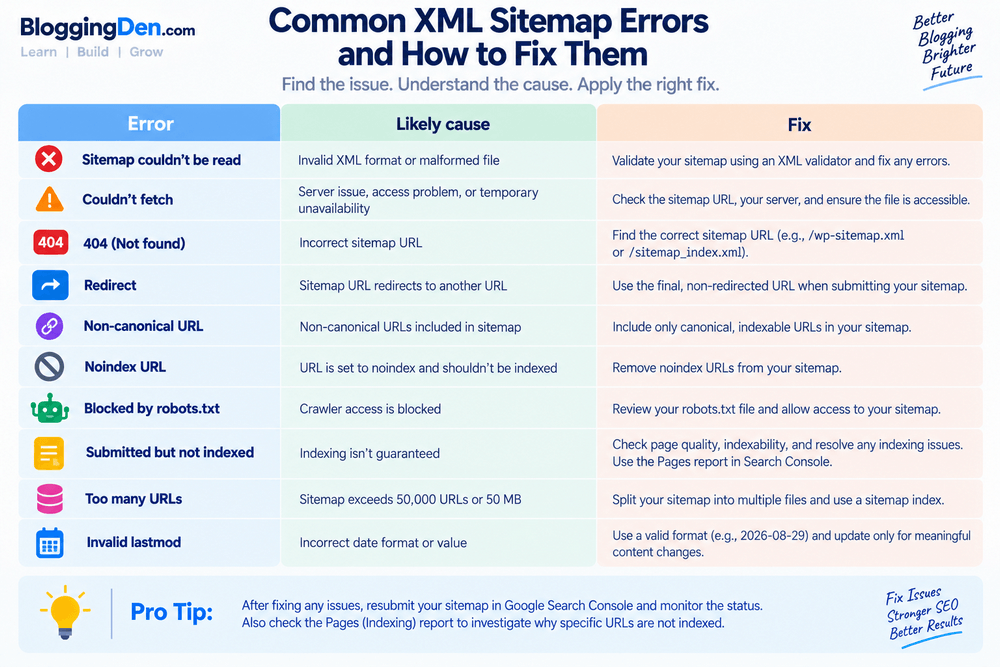
The good news is that most sitemap problems are straightforward to diagnose. Start by checking the sitemap URL itself, then verify that the XML is valid, accessible, and contains the correct canonical URLs.
Common XML Sitemap Errors and Fixes
| Error | Likely cause | Fix |
|---|---|---|
| Sitemap couldn’t be read | Invalid XML, malformed tags, or unexpected content in the sitemap | Open the sitemap directly and validate the XML. Make sure it contains valid sitemap syntax and no HTML error page |
| Couldn’t fetch | Server, hosting, firewall, DNS, or access problem | Check that the sitemap URL returns successfully and that search-engine crawlers can access it |
| 404 Not Found | Incorrect sitemap URL or deleted sitemap file | Find the correct sitemap URL, such as /sitemap_index.xml or /wp-sitemap.xml, and submit that URL |
| Redirect | The submitted sitemap URL redirects to another URL | Use the final sitemap URL instead of submitting a URL that redirects |
| Non-canonical URL | The sitemap contains a URL that is not the preferred canonical version | Replace it with the canonical URL and keep duplicate or alternate versions out of the sitemap |
| Noindex URL | A URL included in the sitemap is intentionally marked noindex | Remove the URL from the sitemap if you do not want it indexed |
| Blocked by robots.txt | Crawler access to the sitemap or referenced URLs is restricted | Review your robots.txt rules and make sure important URLs are accessible to crawlers |
| Submitted but not indexed | Sitemap submission does not guarantee indexing; the page may have quality, duplication, canonical, or other indexing issues | Check the page’s indexability, canonical status, content quality, and Search Console URL Inspection data |
| Too many URLs | The sitemap exceeds the supported URL limit | Split the URLs across multiple sitemap files and use a sitemap index |
Invalid <lastmod> | Incorrect date format or a date that does not accurately represent a meaningful page update | Use a valid date and update <lastmod> when the page has been meaningfully modified |
1. Sitemap Couldn’t Be Read
If Google reports that your sitemap couldn’t be read, first open the sitemap URL in your browser.
A normal XML sitemap should display XML content rather than a WordPress error page, login page, HTML document, or server error.
Common causes include:
- Invalid XML syntax
- Missing or incorrectly nested XML tags
- A plugin generating malformed sitemap data
- Server errors returning HTML instead of XML
- A corrupted sitemap or sitemap index
If the sitemap is generated by WordPress or an SEO plugin, temporarily check whether another plugin or custom configuration is interfering with its output.
2. Couldn’t Fetch the Sitemap
A Couldn’t fetch error generally points to an access or server-side problem. Check the sitemap URL, DNS, hosting configuration, firewall, CDN, and server response.
The sitemap should be publicly accessible and return a successful response. If your server intermittently returns errors or blocks legitimate crawlers, Google may not be able to process the file reliably.
3. 404, Redirect, or Wrong Sitemap URL
One of the simplest problems is submitting the wrong sitemap address.
For example, your website may use:
https://example.com/sitemap_index.xml
while you submit:
https://example.com/sitemap.xml
The correct URL depends on whether you use WordPress core, Rank Math, Yoast SEO, or another sitemap generator.
If the submitted sitemap returns a 404, find the actual sitemap URL and submit that instead.
If the sitemap URL redirects, use the final sitemap URL whenever possible.
4. Non-Canonical or Noindex URLs
Your sitemap should contain the URLs you actually want search engines to consider for indexing.
If a sitemap contains duplicate URLs, alternate versions, redirected URLs, or pages marked noindex, clean up the sitemap configuration.
Google considers sitemap inclusion as one of several canonicalization signals, but it remains only a hint.
5. Blocked by robots.txt
Check your robots.txt file if important URLs cannot be crawled.
Remember that robots.txt controls crawling access; it is not a reliable replacement for indexing controls. Google notes that a disallowed URL may still appear in search results even though its content cannot be crawled.
6. Submitted but Not Indexed
This is one of the most misunderstood sitemap messages.
Submitting a URL in a sitemap does not guarantee that Google will index it.
If an important page is not indexed, investigate the page itself using Search Console’s URL Inspection tool. Check its canonical URL, indexability, content quality, internal links, and any technical issues.
7. Too Many URLs or Invalid <lastmod>
A sitemap file supports up to 50,000 URLs or 50 MB uncompressed. Larger sites should split their URLs across multiple sitemap files and reference them through a sitemap index.
For <lastmod>, use accurate dates that represent meaningful content changes. Avoid changing the date simply to make an old page appear fresh.
Quick troubleshooting rule:
If Google cannot process your sitemap, check it in this order:
URL → HTTP response → XML validity → robots.txt/access → canonical URLs → indexability → Search Console status
Fixing the underlying problem is more important than repeatedly resubmitting the same broken sitemap.
XML Sitemap Best Practices
An XML sitemap works best when it contains a clean list of the URLs you actually want search engines to discover and consider for indexing. A sitemap should not be treated as a complete list of every URL your website can generate.
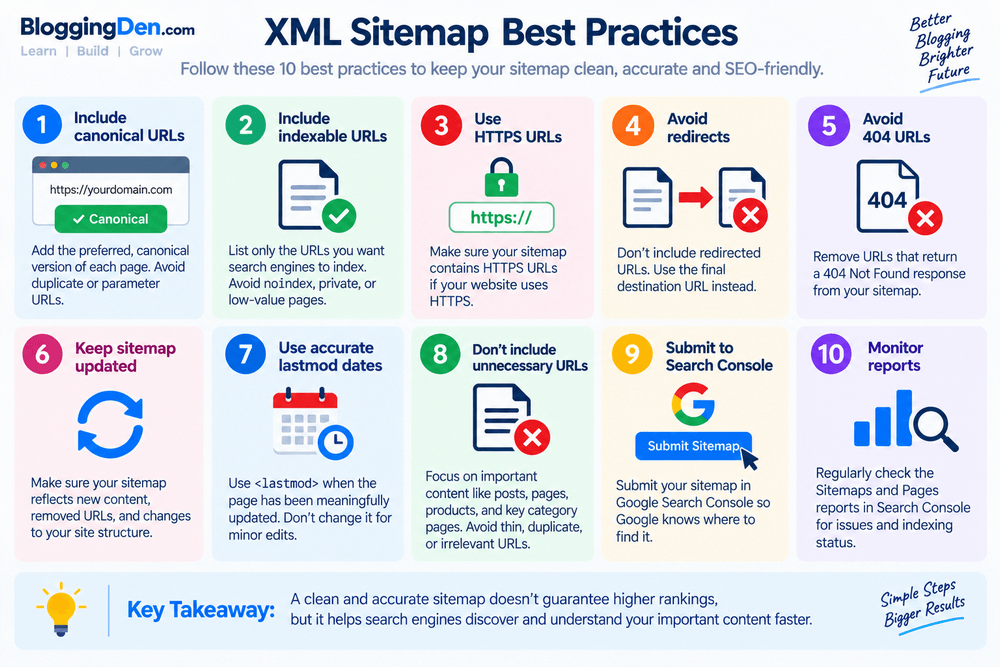
For most WordPress websites, your SEO plugin or WordPress itself can manage the sitemap automatically. However, you should still review the sitemap periodically to make sure it follows these best practices.
10-Point XML Sitemap Best Practices Checklist
1. Include canonical URLs
Add the preferred, canonical version of each page to your sitemap. Avoid including duplicate URLs, URL variations, or pages that point to another canonical URL.
For example, if:
https://example.com/seo-guide/
is the canonical URL, don’t include alternate versions such as tracking-parameter URLs in your sitemap.
2. Include indexable URLs
Your sitemap should primarily contain URLs that you want search engines to index.
Avoid adding pages that are intentionally marked noindex, private pages, or other URLs that are not part of your search visibility strategy.
3. Use HTTPS URLs
If your website uses HTTPS, make sure the sitemap contains the HTTPS version of your URLs.
Use:
https://example.com/blog-post/
rather than:
http://example.com/blog-post/
HTTPS should also be the preferred version used throughout your website.
4. Avoid redirects
Don’t use redirected URLs in your sitemap when you can include the final destination directly.
For example, if:
https://example.com/old-page/
redirects to:
https://example.com/new-page/
the sitemap should normally contain the final URL.
5. Avoid 404 URLs
Remove URLs that return a 404 Not Found response.
Broken URLs provide little value in a sitemap and can indicate that your sitemap is not being maintained properly. When content is permanently removed, update the sitemap accordingly.
6. Keep your sitemap updated
Your sitemap should reflect the current structure of your website.
When you publish new content, remove permanently deleted URLs, or make significant changes to your site, make sure your sitemap system updates accordingly.
Most modern WordPress SEO plugins handle these updates automatically.
7. Use accurate <lastmod> dates
Use the <lastmod> value when it accurately represents a meaningful modification to a page.
Don’t change the date every time you make a tiny formatting adjustment simply to make the page appear recently updated. Inaccurate dates reduce the usefulness of the information provided to search engines.
8. Don’t include unnecessary URLs
More URLs don’t automatically make a sitemap better.
Focus on important, indexable URLs such as:
- Blog posts
- Pages
- Products
- Important category or taxonomy pages
- Other canonical URLs that you want discovered
Avoid cluttering your sitemap with duplicate, temporary, thin, or irrelevant URLs.
9. Submit your sitemap to Google Search Console
After confirming that your sitemap works correctly, submit it through Google Search Console.
This gives Google the location of your sitemap and allows you to monitor whether Google can successfully fetch and process it.
Remember that submitting a sitemap is a discovery signal, not an indexing guarantee.
10. Monitor sitemap and indexing reports
Don’t simply submit your sitemap and forget about it.
Periodically check the Sitemaps report in Google Search Console for processing problems. If important pages aren’t being indexed, also review the Pages report and use URL Inspection to investigate individual URLs.
Quick XML Sitemap Checklist
Before considering your sitemap finished, ask:
- Are the URLs canonical?
- Are they indexable?
- Do they use HTTPS?
- Do they return successful responses?
- Are redirects and 404s excluded?
- Is the sitemap updated automatically?
- Are
<lastmod>dates accurate? - Have unnecessary URLs been removed?
- Has the sitemap been submitted to Search Console?
- Are sitemap and indexing reports monitored regularly?
A clean sitemap doesn’t guarantee higher rankings, but it gives search engines a clearer set of URLs to discover and process. For most websites, accuracy and relevance are more important than simply having a large sitemap.
Do You Need an XML Sitemap?
Not every website needs a complex XML sitemap setup, but for most modern websites, having a clean sitemap is inexpensive and useful.
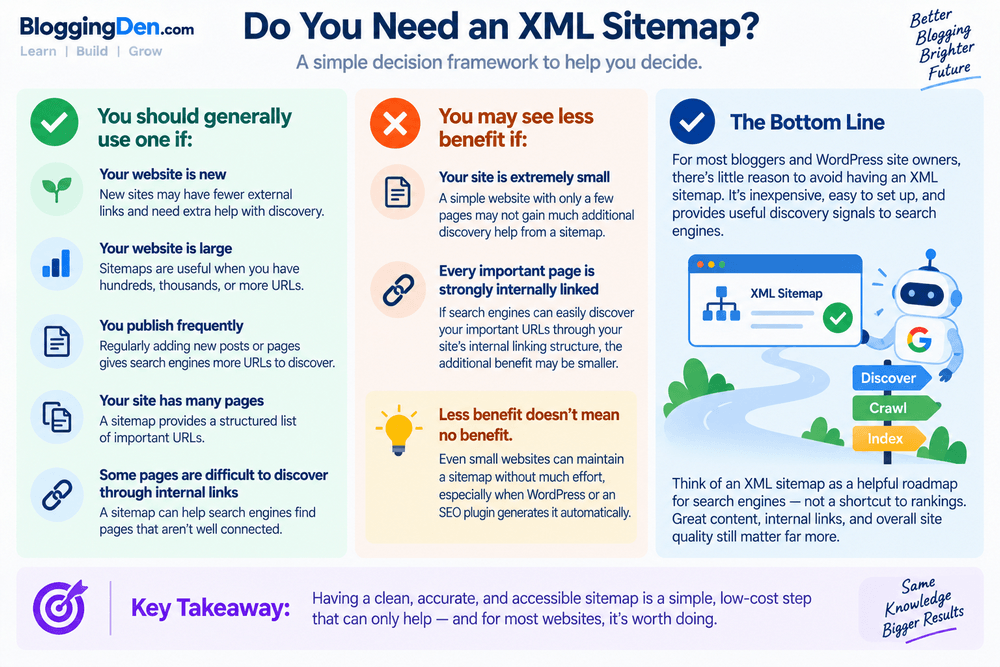
An XML sitemap mainly helps search engines discover important URLs. It does not guarantee that those pages will be crawled, indexed, or ranked, but it can make URL discovery more efficient—especially as a website grows.
You should generally use an XML sitemap if:
- Your website is new: New websites may have fewer external links and fewer signals helping search engines discover their pages.
- Your website is large: Sitemaps become more useful when a site contains hundreds, thousands, or more URLs.
- You publish frequently: Regularly publishing new posts or pages gives search engines more URLs to discover.
- Your site has many pages: A sitemap provides a structured list of important URLs that you want search engines to consider.
- Some pages are difficult to discover through internal links: If important pages aren’t well connected to other pages on your website, a sitemap can provide another discovery path.
You may see less benefit if:
- Your site is extremely small: A simple website with only a handful of pages may not gain much additional discovery help from a sitemap.
- Every important page is strongly internally linked: If search engines can easily discover your important URLs through your site’s internal linking structure, the additional discovery benefit may be smaller.
However, “less benefit” doesn’t mean “no benefit.” A small website can still maintain a sitemap without much effort, particularly when WordPress or an SEO plugin generates it automatically.
The practical recommendation
For most bloggers and WordPress site owners, there’s little reason to avoid having an XML sitemap.
You generally don’t need to install a dedicated sitemap plugin just to create one. Modern WordPress and popular SEO plugins can generate sitemaps automatically.
The important thing is to keep the sitemap clean, accessible, accurate, and focused on canonical, indexable URLs.
Think of an XML sitemap as a helpful roadmap for search engines—not a shortcut to rankings. Your content quality, internal links, technical SEO, and overall site quality still matter far more than simply having a sitemap.
XML Sitemap SEO Checklist for WordPress
Before submitting or troubleshooting your WordPress XML sitemap, use this quick checklist to make sure everything is configured correctly.
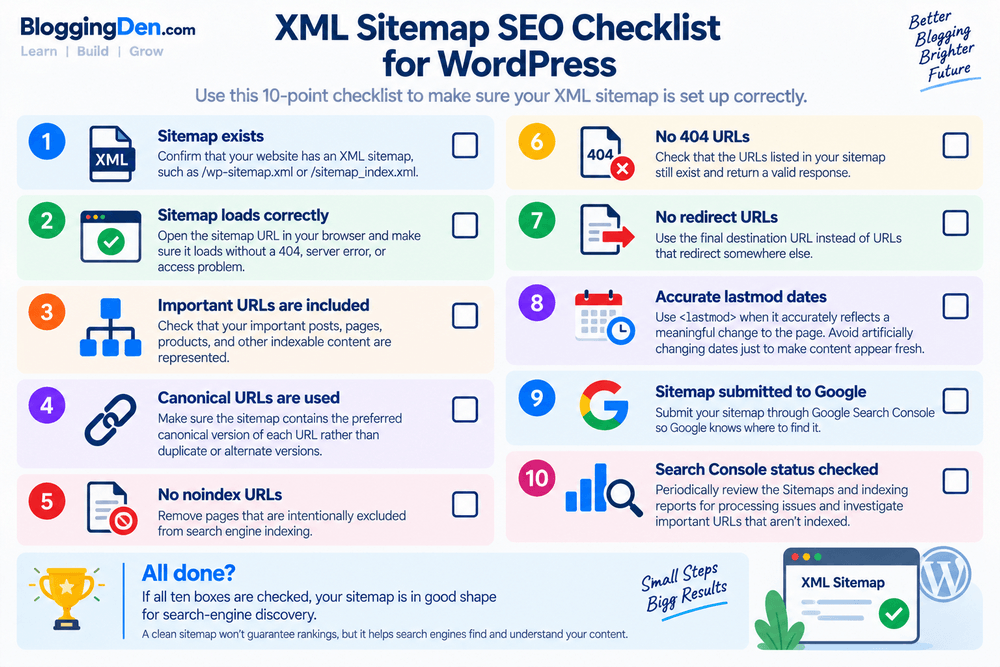
10-Point XML Sitemap Checklist
Quick Final Check
If all ten boxes are checked, your sitemap is in good shape for search-engine discovery.
Remember: a technically correct sitemap doesn’t guarantee that every URL will be crawled or indexed. It simply gives search engines a cleaner set of URLs to discover and evaluate.
Pro tip: Save this checklist as part of your WordPress SEO workflow and revisit it whenever you redesign your site, change SEO plugins, migrate URLs, or make major structural changes.
Frequently Asked Questions About XML Sitemaps
What is an XML sitemap?
An XML sitemap is a machine-readable file that lists important URLs on a website. It helps search engines such as Google discover pages, posts, products, and other content that you want them to consider for crawling and indexing. An XML sitemap commonly uses a URL such as /sitemap.xml, /sitemap_index.xml, or /wp-sitemap.xml.
Do I need an XML sitemap for my WordPress website?
Most WordPress websites can benefit from having an XML sitemap, particularly new, large, or frequently updated sites. WordPress automatically provides a basic sitemap, while SEO plugins can offer additional control. A sitemap is not required to guarantee indexing, but it provides search engines with another way to discover important website URLs.
Does WordPress automatically create an XML sitemap?
Yes. Modern WordPress versions include a built-in XML sitemap system. On a typical WordPress website, the default sitemap index can be found at /wp-sitemap.xml. SEO plugins such as Rank Math and Yoast SEO can also generate their own sitemap systems with additional configuration options.
Where can I find my XML sitemap?
You can usually find an XML sitemap by adding /wp-sitemap.xml or /sitemap_index.xml to your domain name. The exact URL depends on your WordPress configuration and SEO plugin. You can also check your website’s robots.txt file for a Sitemap: directive that identifies the sitemap location.
How do I submit an XML sitemap to Google?
To submit an XML sitemap to Google, open Google Search Console and select your website property. Go to Sitemaps, enter the sitemap URL, and click Submit. Google will then attempt to fetch and process the sitemap. Submitting a sitemap helps Google discover URLs but does not guarantee that every URL will be indexed.
Does an XML sitemap improve SEO?
An XML sitemap can support SEO by helping search engines discover important URLs, especially on new, large, or frequently updated websites. However, an XML sitemap is not a direct ranking factor that guarantees higher positions. Content quality, search intent, internal links, technical SEO, and overall website quality remain important for rankings.
How many URLs can an XML sitemap contain?
A single XML sitemap can contain up to 50,000 URLs or 50 MB of uncompressed data, whichever limit is reached first. Large websites should split URLs across multiple sitemap files and use a sitemap index to organize them. WordPress SEO plugins can usually handle sitemap splitting automatically.
Should I include noindex pages in my XML sitemap?
No. You should generally avoid including pages marked noindex in your XML sitemap because the sitemap should focus on URLs you want search engines to consider for indexing. Review your sitemap configuration and remove intentionally excluded pages, duplicate URLs, and other unnecessary URLs.
Should an XML sitemap contain 404 pages?
No. An XML sitemap should not contain URLs that return a 404 Not Found response. Remove deleted or broken URLs from your sitemap and make sure important URLs return a successful response. Keeping invalid URLs out of your sitemap helps maintain a clean and accurate list of pages for search-engine discovery.
Should an XML sitemap contain redirected URLs?
Generally, no. Your XML sitemap should contain the final, canonical URLs rather than URLs that redirect to another location. For example, if an old URL redirects to a new page, include the final destination URL in the sitemap instead. This keeps the sitemap aligned with your preferred URL structure.
What is the difference between an XML sitemap and an HTML sitemap?
An XML sitemap is primarily designed for search engines and provides machine-readable information about website URLs. An HTML sitemap is designed for visitors and presents links in a human-readable format. XML sitemaps support search-engine discovery, while HTML sitemaps can provide an additional navigation option for website users.
What is a sitemap index?
A sitemap index is an XML file that lists multiple sitemap files instead of individual webpage URLs. It is useful for large websites that need to divide URLs into separate files, such as post, page, category, or product sitemaps. Search engines can access the individual sitemap files through the sitemap index.
What is <lastmod> in an XML sitemap?
<lastmod> is an optional XML sitemap element that indicates when a URL was last meaningfully modified. Accurate dates can help search engines understand when important content changes occurred. You should not update <lastmod> for insignificant edits simply to make a page appear fresh. Use accurate, meaningful modification dates whenever possible.
Does an XML sitemap guarantee Google indexing?
No. An XML sitemap does not guarantee Google indexing. Submitting a sitemap is a signal that helps Google discover URLs, but Google decides whether and when to crawl and index individual pages. If a page is not indexed, investigate its indexability, canonical status, content quality, internal links, and other technical factors.
Can an XML sitemap improve website crawling?
An XML sitemap can help search engines discover URLs that might otherwise be harder to find, particularly on large or frequently updated websites. However, it does not force search engines to crawl every listed URL. Strong internal linking, accessible pages, useful content, and a technically healthy website remain important for effective crawling.
How do I troubleshoot XML sitemap errors?
Start by opening your XML sitemap URL directly in a browser to confirm that it loads correctly. Then check Google Search Console for sitemap errors such as “Couldn’t fetch” or “Couldn’t read.” Verify that the sitemap contains valid, canonical, indexable URLs and excludes 404, redirected, and noindex URLs. Finally, check your server and robots.txt settings.
Why is my sitemap not working?
If your XML sitemap is not working, first open the sitemap URL directly and check whether it loads without errors. Then verify that it contains valid XML and accessible, canonical URLs. In Google Search Console, check the Sitemaps report for errors such as “Couldn’t fetch” or “Couldn’t read.” Also review robots.txt, server access, redirects, and 404 errors.
Why does Google Search Console say “Couldn’t fetch sitemap”?
The “Couldn’t fetch” sitemap error means Google Search Console was unable to successfully access or retrieve your XML sitemap. Check that the sitemap URL is correct, publicly accessible, and returns a valid response. Also review server errors, DNS, firewall or CDN restrictions, redirects, and robots.txt rules that could prevent Google from accessing the sitemap.
Final Verdict
An XML sitemap is a discovery and crawling aid that helps search engines find the important URLs on your website. It is especially useful for new, large, frequently updated, or content-heavy websites.
If you’re using WordPress, you don’t necessarily need a separate sitemap plugin. WordPress can generate an XML sitemap automatically, while SEO plugins such as Rank Math and Yoast SEO can provide additional control over which content appears in your sitemap.
For the best results, keep your sitemap clean and focused. Include only useful, canonical, indexable URLs and avoid 404 pages, redirects, duplicate URLs, and pages you intentionally don’t want indexed.
Once your sitemap is ready, submit it to Google Search Console and monitor its status for processing or indexing issues.
Most importantly, don’t confuse sitemap submission with guaranteed indexing. A sitemap tells Google which URLs you’d like it to discover; it does not guarantee crawling, indexing, or higher rankings.
Ready to submit yours? Follow our step-by-step guide: How to Submit XML Sitemap to Google Search Console.
Want Easier XML Sitemap Control?
Rank Math SEO can automatically generate your WordPress XML sitemap and gives you easy-to-use controls for managing which content appears in it. It’s a convenient option for bloggers who want more sitemap and SEO control without manually editing XML files.
Disclosure: This link is an affiliate link. If you purchase through it, BloggingDen may earn a commission at no additional cost to you.